Deploy Over-the-Air (OTA) Updates
Learn how to create and manage OTA updates in Spotflow for your embedded device fleet.
Prerequisite: Device OTA Integration
Spotflow allows you to manage OTA updates for your embedded devices.
Guide: Over-the-air updates with Zephyr
Guide: Over-the-air updates of external MCUs with Zephyr
The Spotflow device module can automatically perform OTA updates of your main firmware on Zephyr devices. It also allows you to handle OTA updates of external MCUs connected to your Zephyr device.
Guide: Over-the-air updates with MQTT
For devices running other platforms or when you cannot use the Spotflow device module, integration of OTA updates is also possible via the standard MQTT interface.
Upload the Firmware File
Make sure you have created firmware and firmware versions on the Firmwares page.
This step uploads the binary that devices will download during the update.
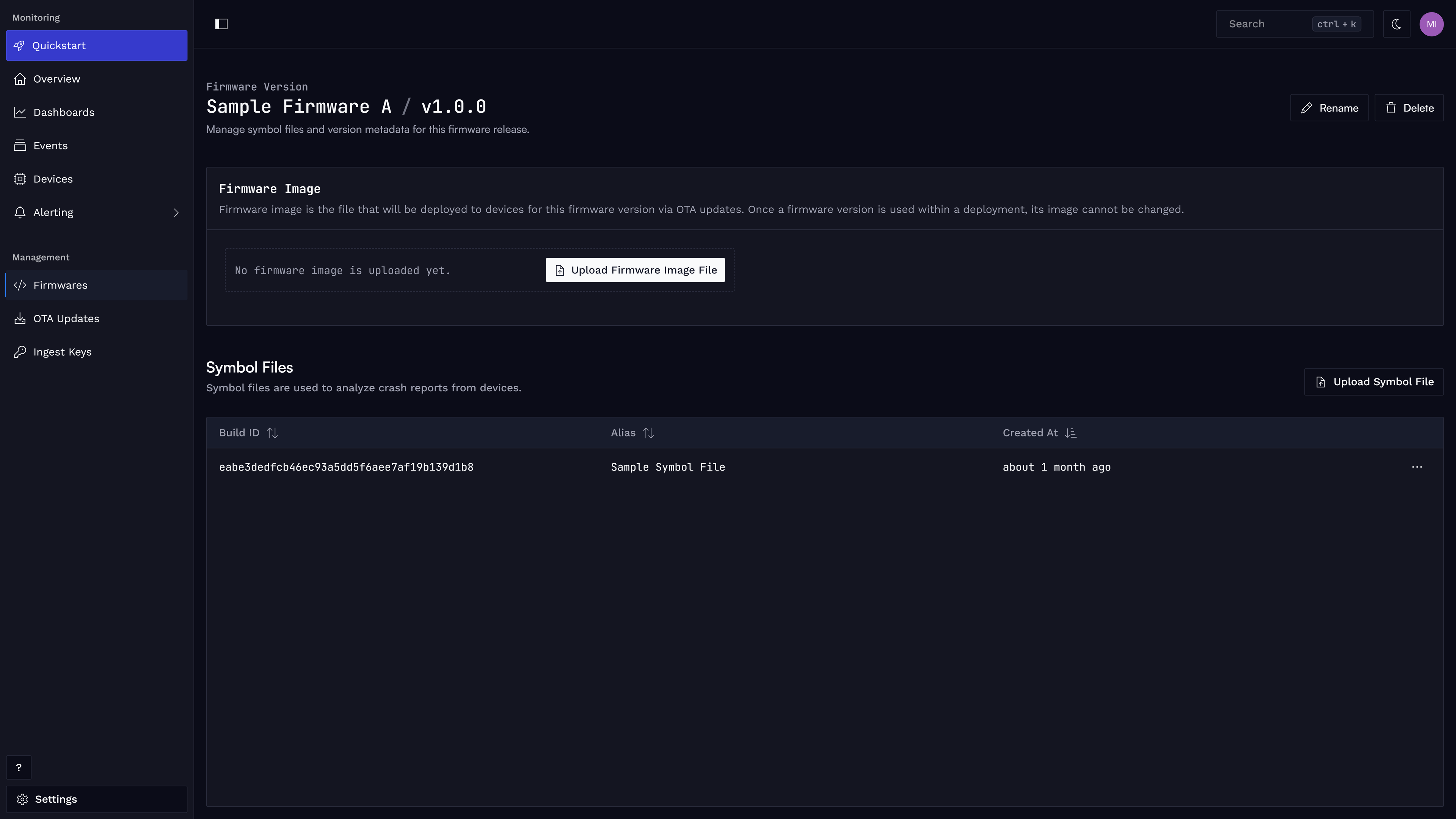
Upload your firmware image by clicking Upload Firmware Image File for the selected firmware version.
Select Which Devices to Update
A deployment cohort is a group of devices that should receive the same OTA deployment.
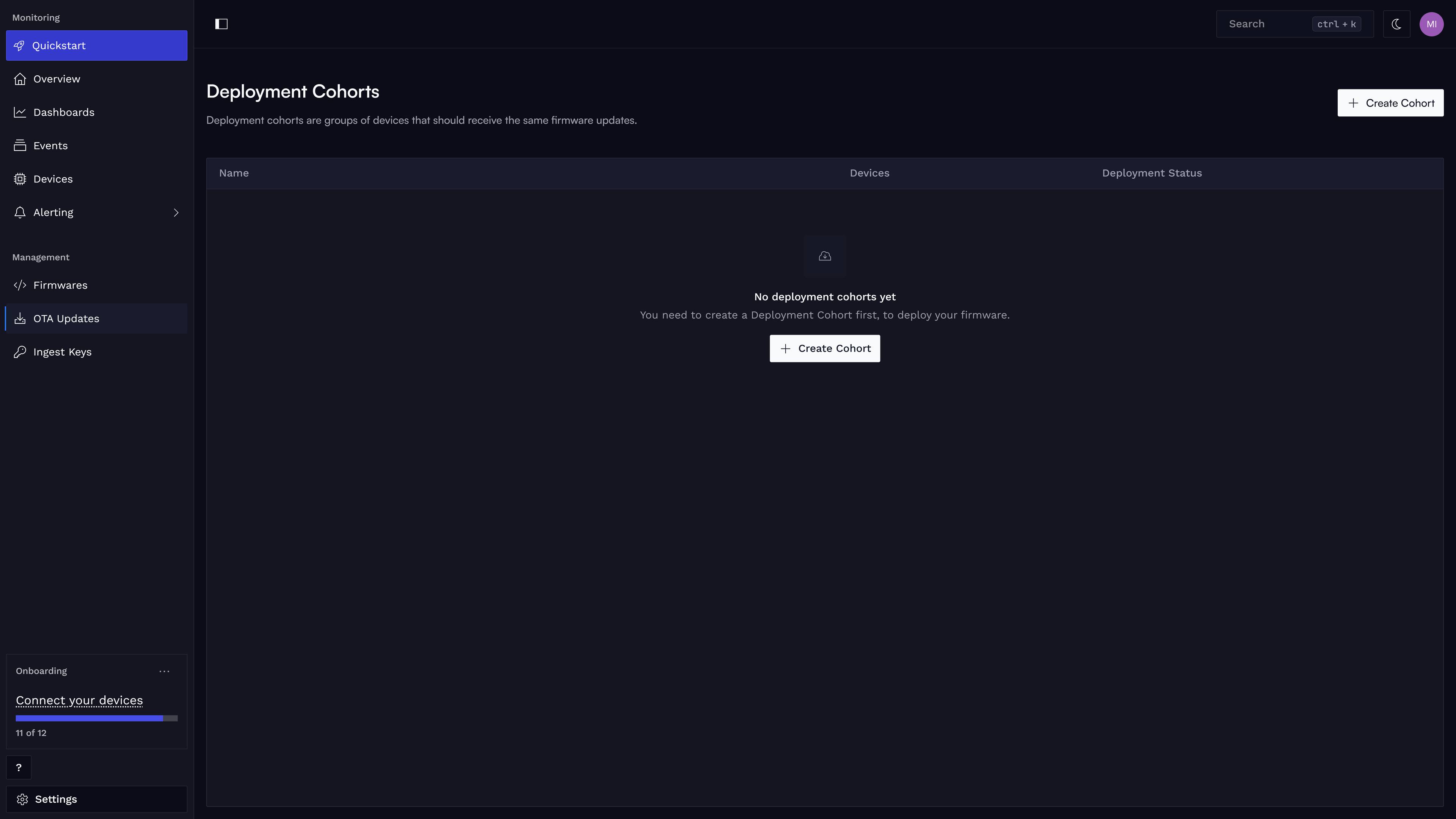
Create a cohort by clicking + Create Cohort on the Deployment Cohorts page.
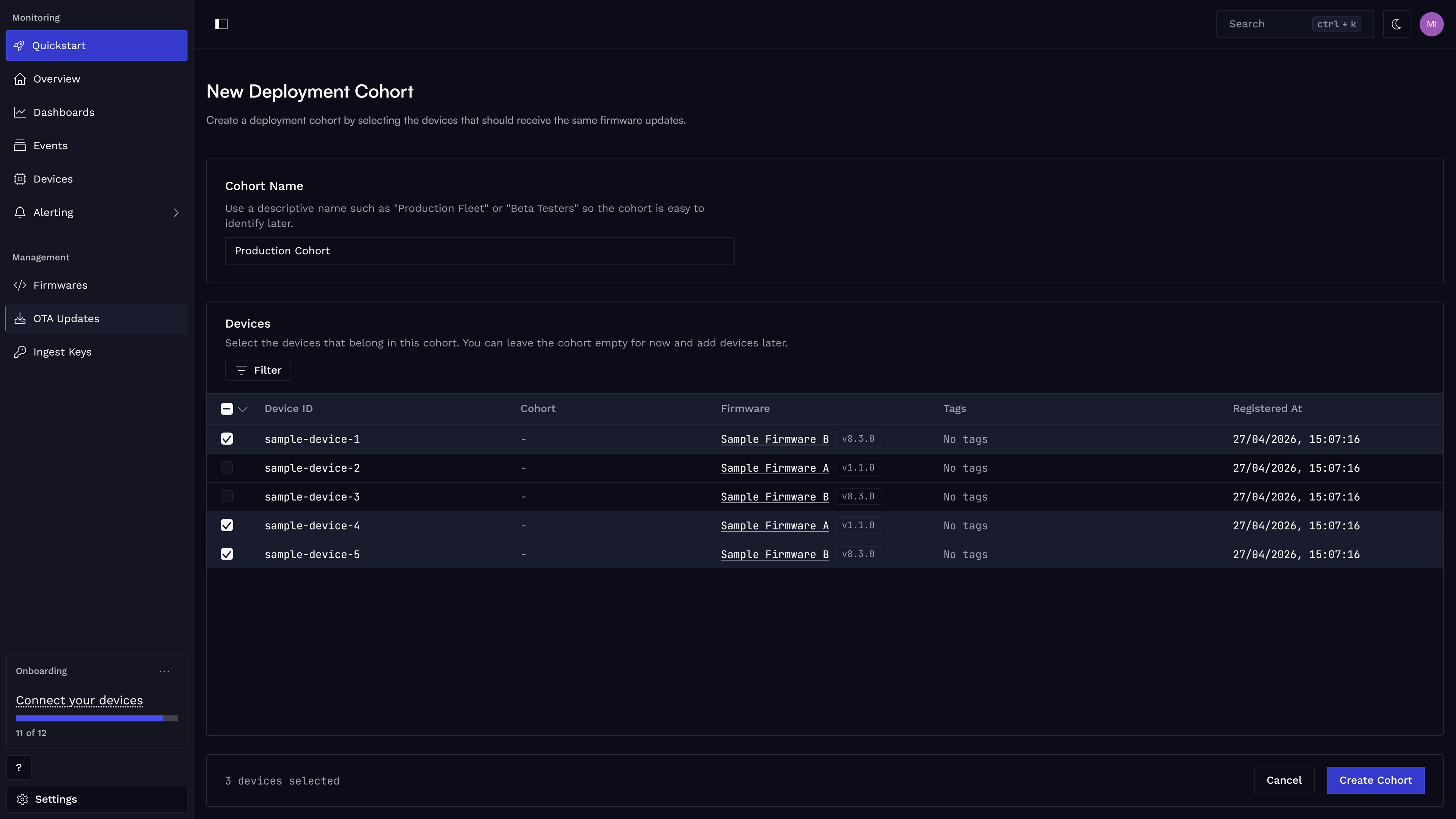
Enter the cohort name and select the devices that should be included in this group.
Create a Deployment
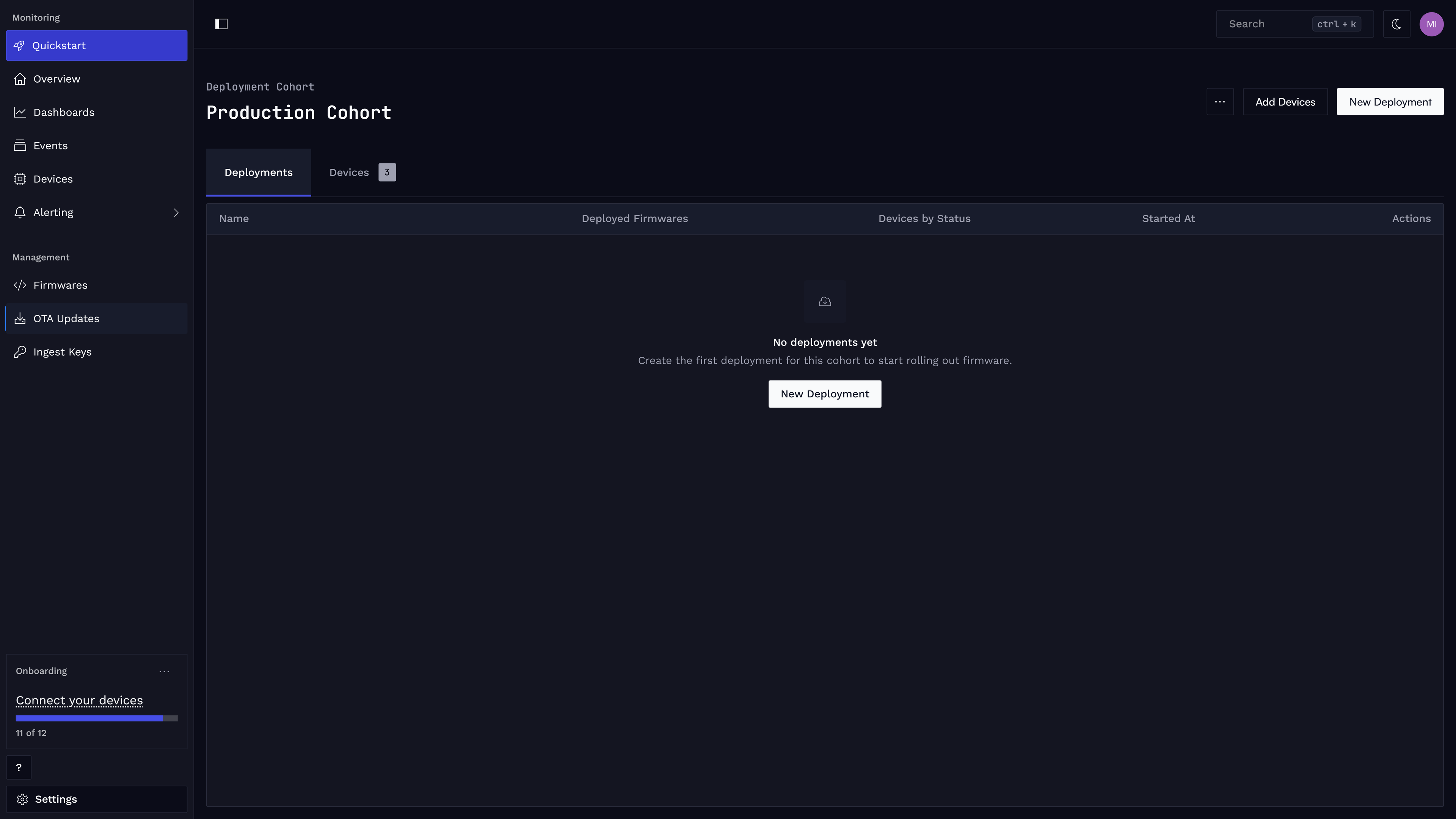
Create a new deployment by clicking New Deployment within the deployment cohort.
Once you start a deployment, it becomes the active deployment for that cohort. The active deployment is propagated to devices that are already in the cohort and also to devices added to the cohort later.
Select the firmware and firmware version that should be deployed to the devices in the cohort and click Continue to review.
If you mark the firmware as main in the UI, the update is handled directly by the Spotflow device SDK.
Updates of other firmware packages are handled by callbacks in your device code.
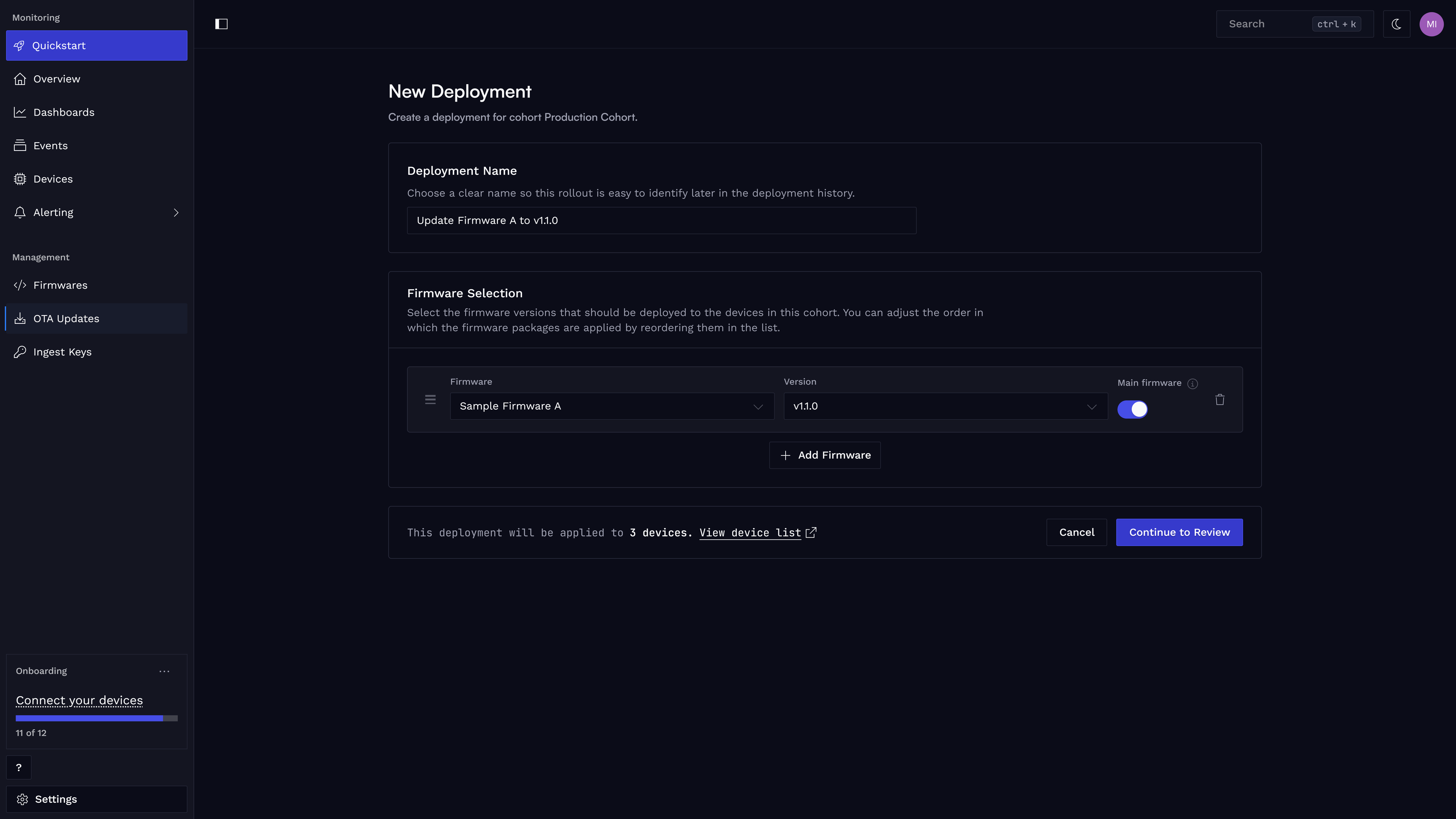
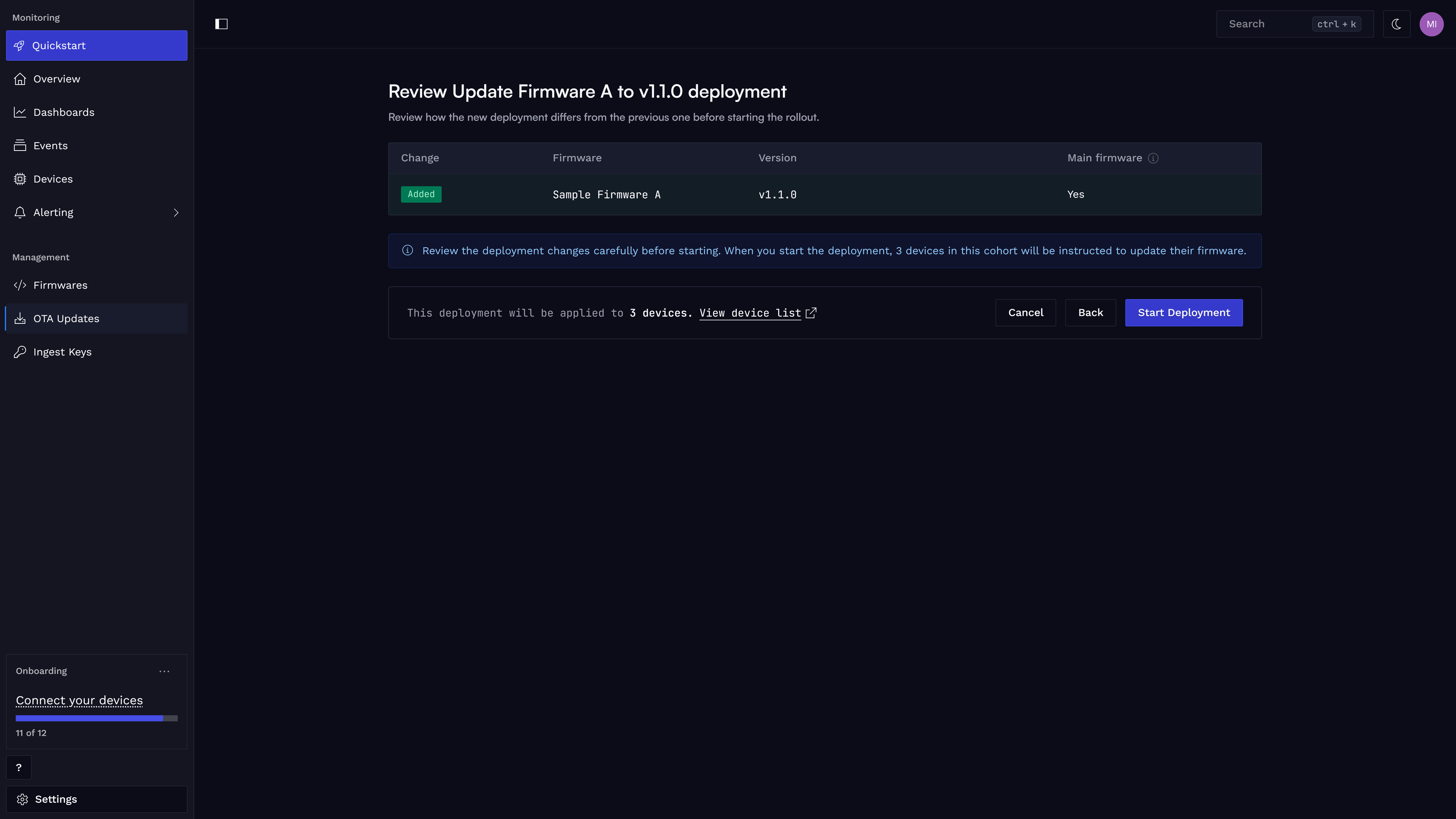
Review the deployment details and click Start Deployment.
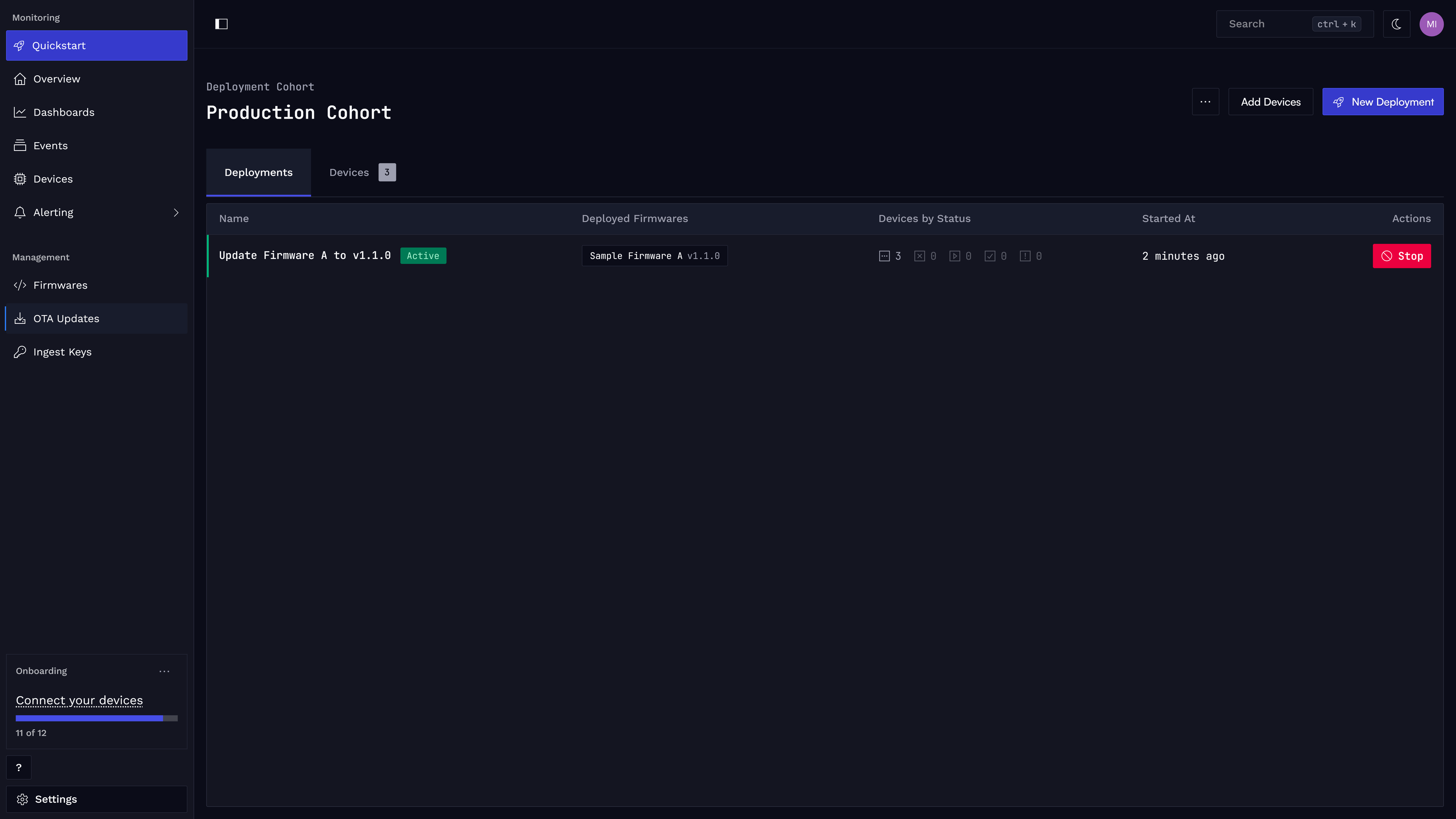
Monitor Deployment Progress
You will see the newly created deployment as the latest active deployment in the deployment cohort.
You can view detailed information about the deployment, including which devices have successfully received the update and which have encountered issues.
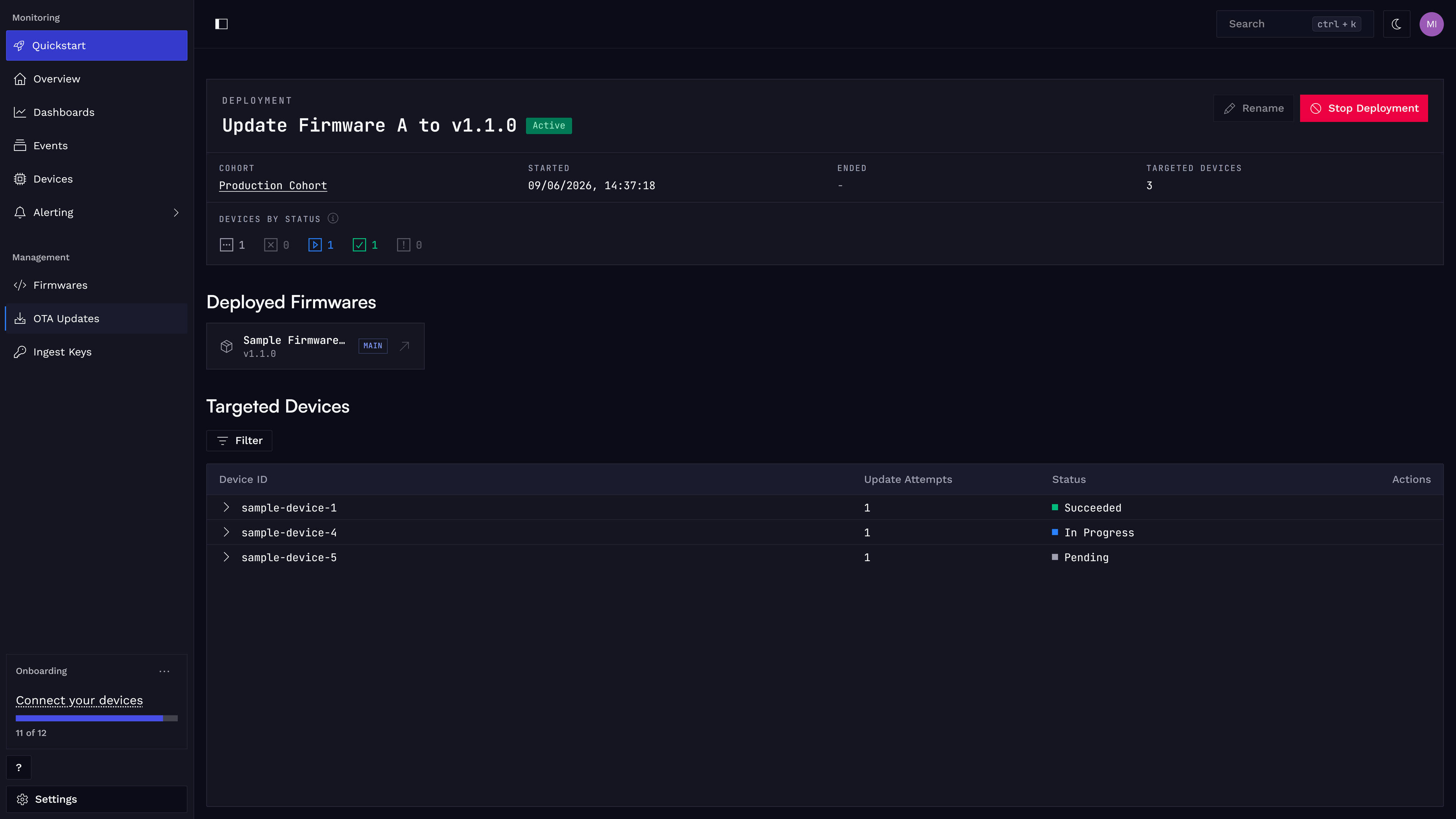
(Optional) Retry Failed Updates
If some devices have failed to install the update, you can retry the deployment for those devices.
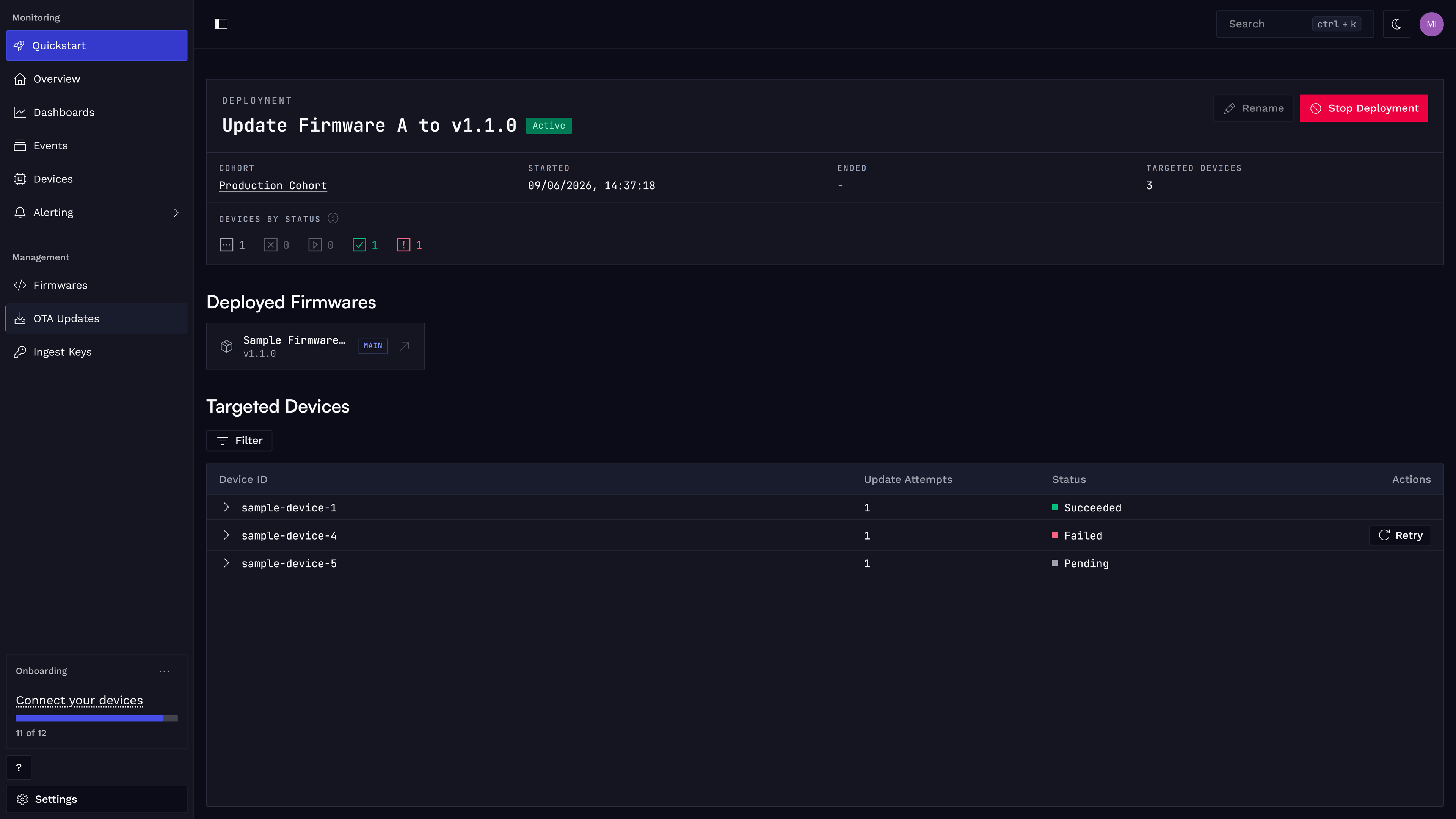
(Optional) Stop Deployment
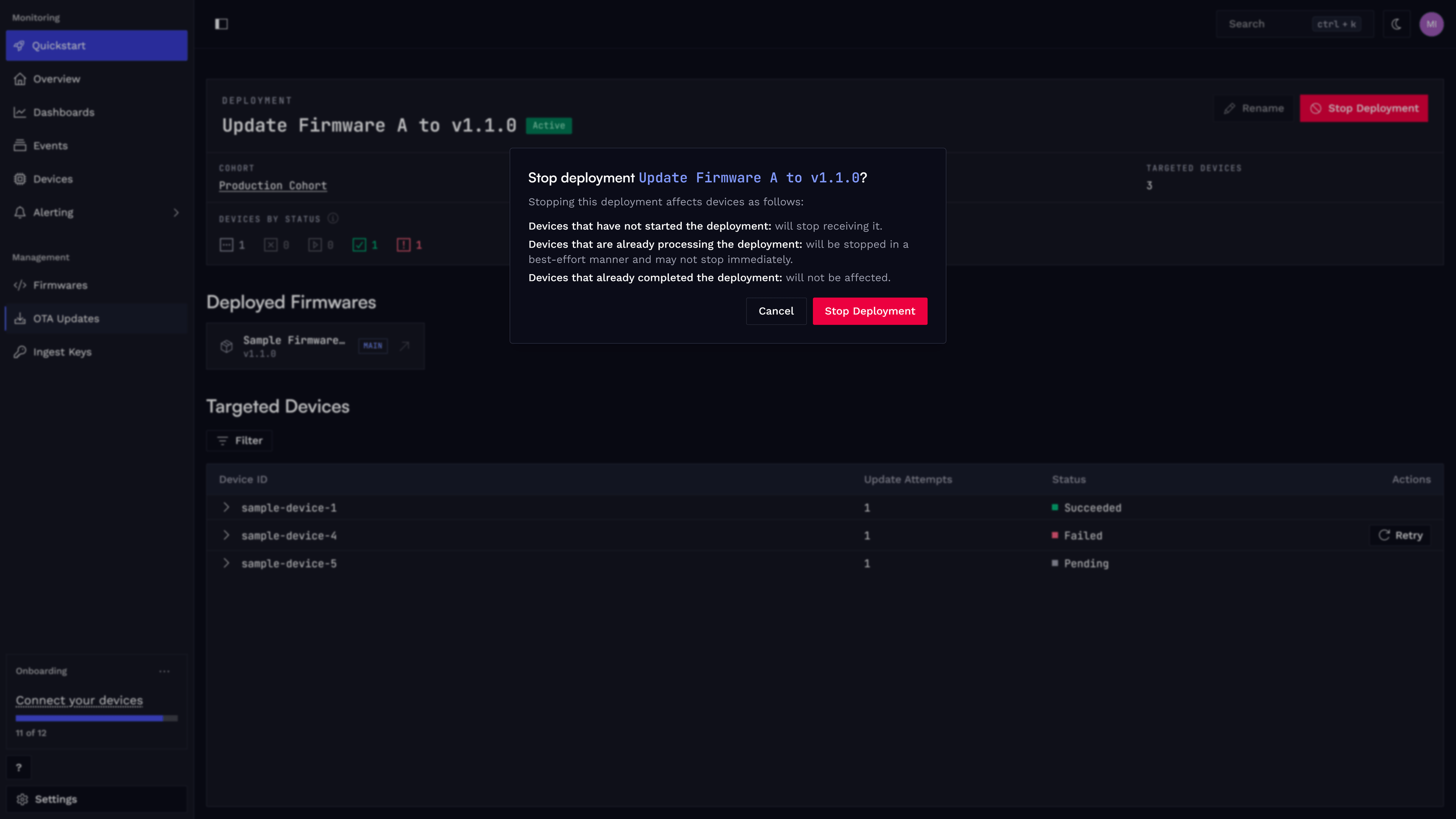
Click Stop Deployment to stop sending the update to devices that have not started it yet.
Devices already updating are stopped on a best-effort basis and may finish anyway, while devices that already finished are not affected.
(Optional) Rollback
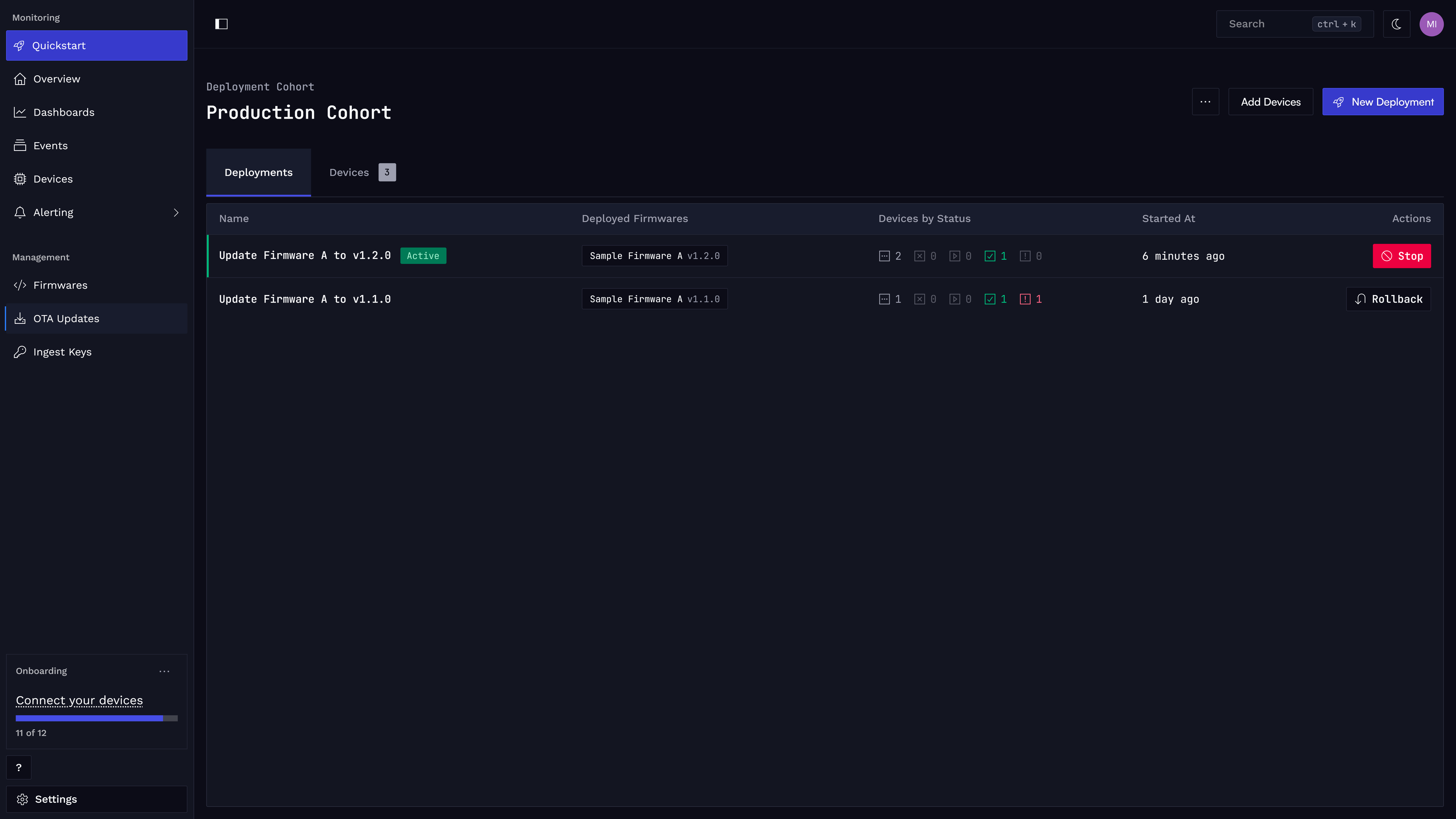
Click Rollback Deployment to create a new deployment with the same firmware version as the previous deployment, effectively rolling back the update.
Learn more
How is this guide?