Dashboards
Learn how to use dashboards in Spotflow to monitor your embedded device fleet effectively.
Overview Dashboard
The Overview Dashboard is the fastest way to understand what’s happening across your entire device fleet. It’s a good first stop when you want a fleet-level picture before drilling into a specific firmware version or device.
It helps you answer questions like:
- Are devices connecting as expected?
- Are crashes increasing, and is it tied to a rollout?
- Which firmware versions are active in the field right now?
- Did something change in logs (volume or severity)?
Use it when you’re monitoring day-to-day operations, validating a rollout, or responding to a report like “devices started rebooting” or “telemetry dropped”.
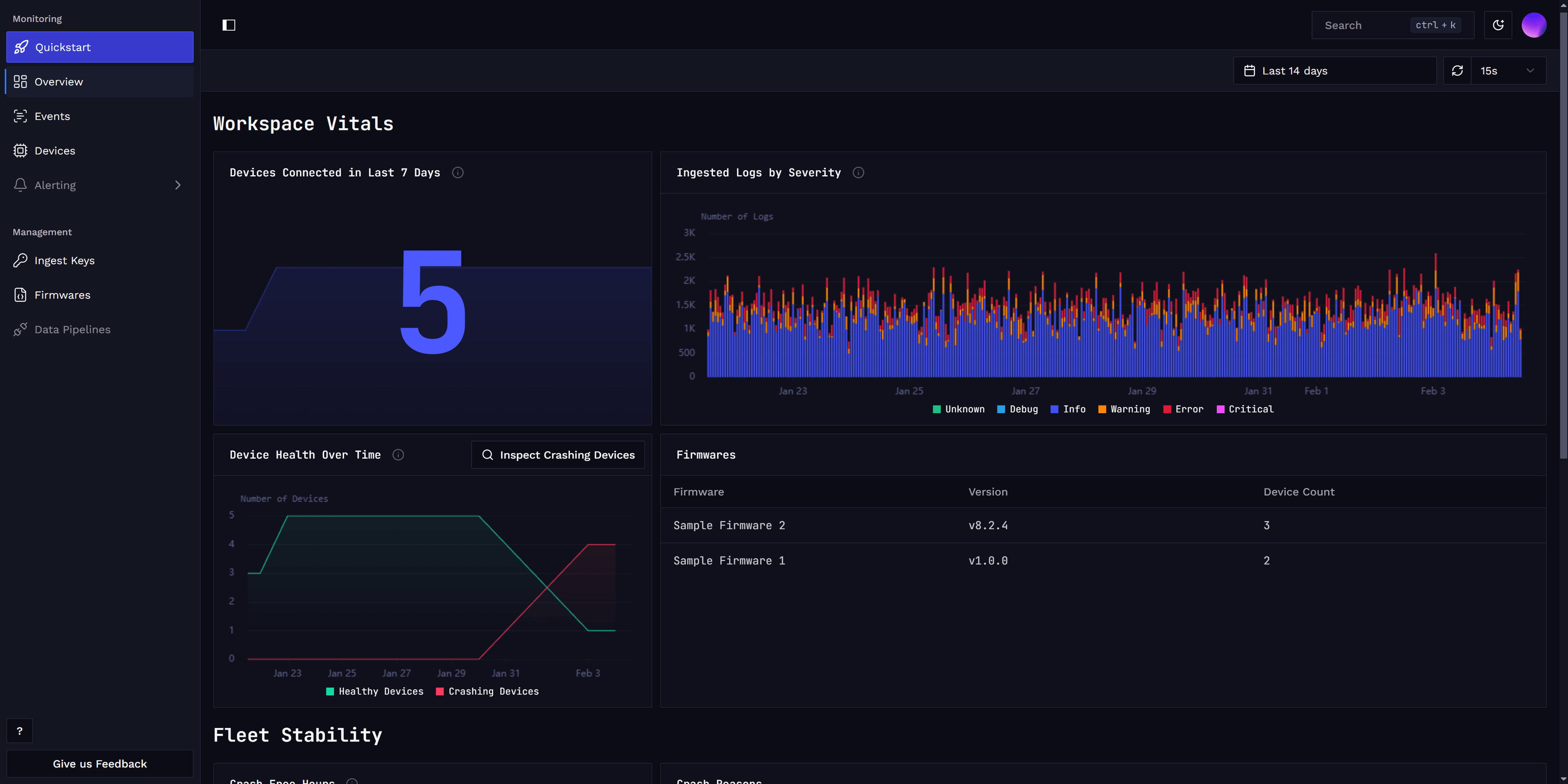
The dashboard is split into two sections: Workspace Vitals and Fleet Stability.
Workspace Vitals
Workspace Vitals provides a high-level snapshot of your fleet’s current state and how it has evolved over time. This section helps you quickly spot changes that might indicate an incident or an unexpected effect of a firmware update. It also lets you easily drill down to investigate the devices that need your attention.
This section shows:
- Devices connected within last 7 days: how many unique devices have connected recently
- Devices with crashes: how many devices have experienced firmware crashes
- Firmware version distribution: which firmware versions are currently running across your fleet
- Log volume by severity: how much logging you’re receiving, broken down by severity
Fleet Stability
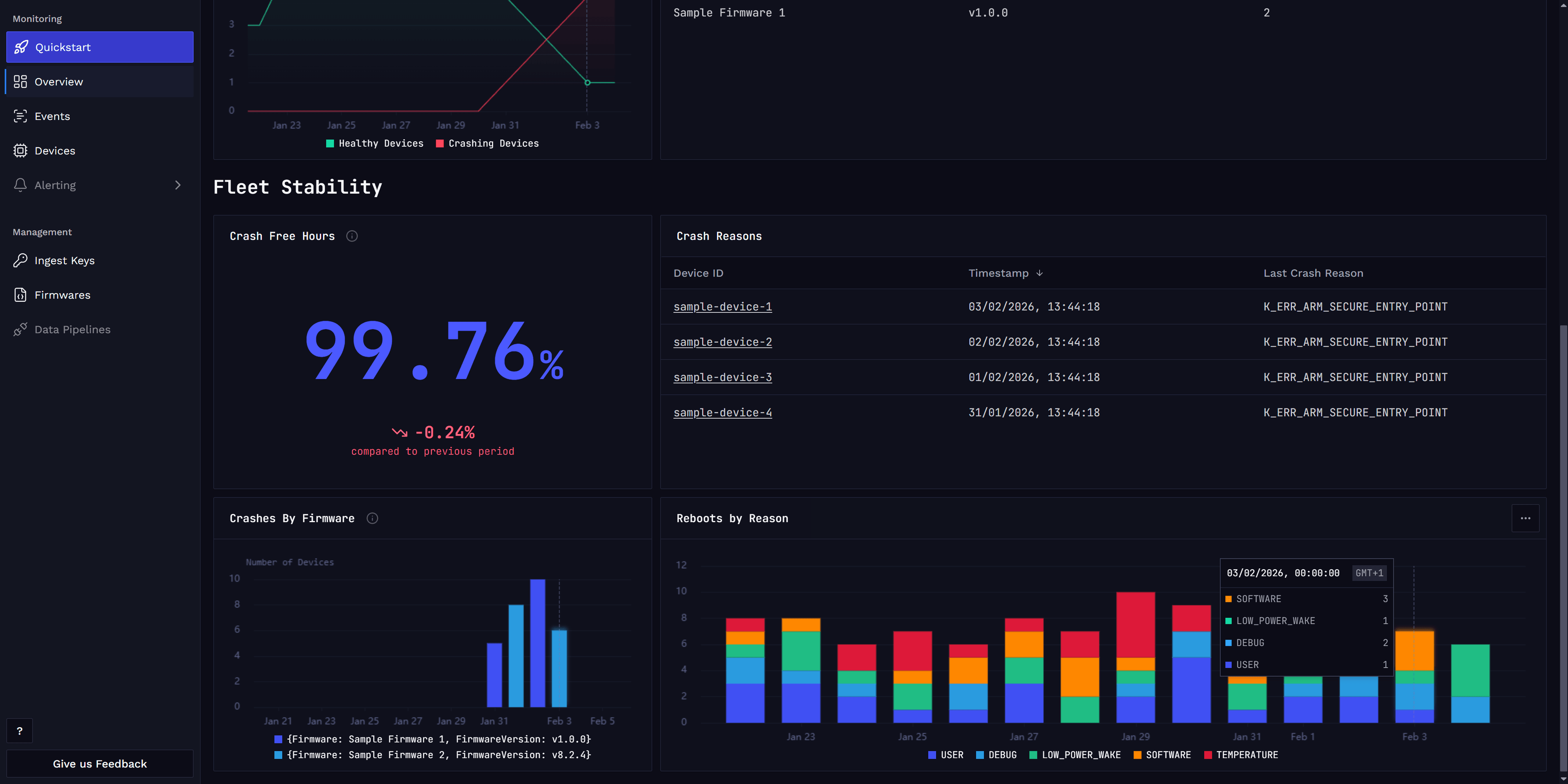
The Fleet Stability section focuses on fleet stability and firmware crashes.
Here you can see:
- Crash-free hours: how reliability changes over time
- Crash rate by firmware version: which firmware versions are most crash-prone
- Reboot and crash causes: what’s behind restarts and crashes across the fleet
Together, these insights help you quickly pinpoint problematic firmware, assess overall stability, and decide where to focus your troubleshooting or rollout efforts.
Device Dashboard
The Device Dashboard is your go-to place for understanding how a single device behaves in the real world over time. All data shown in the dashboard is computed from metrics automatically collected by our device module, no extra instrumentation or manual setup required. To populate these views from Zephyr devices, enable system metrics as described in Gathering metrics with Zephyr.
It helps you answer questions like:
- Is this device stable?
- Did a recent firmware update introduce crashes?
- Is the device communicating reliably with the cloud?
- Are we running close to CPU or memory limits?
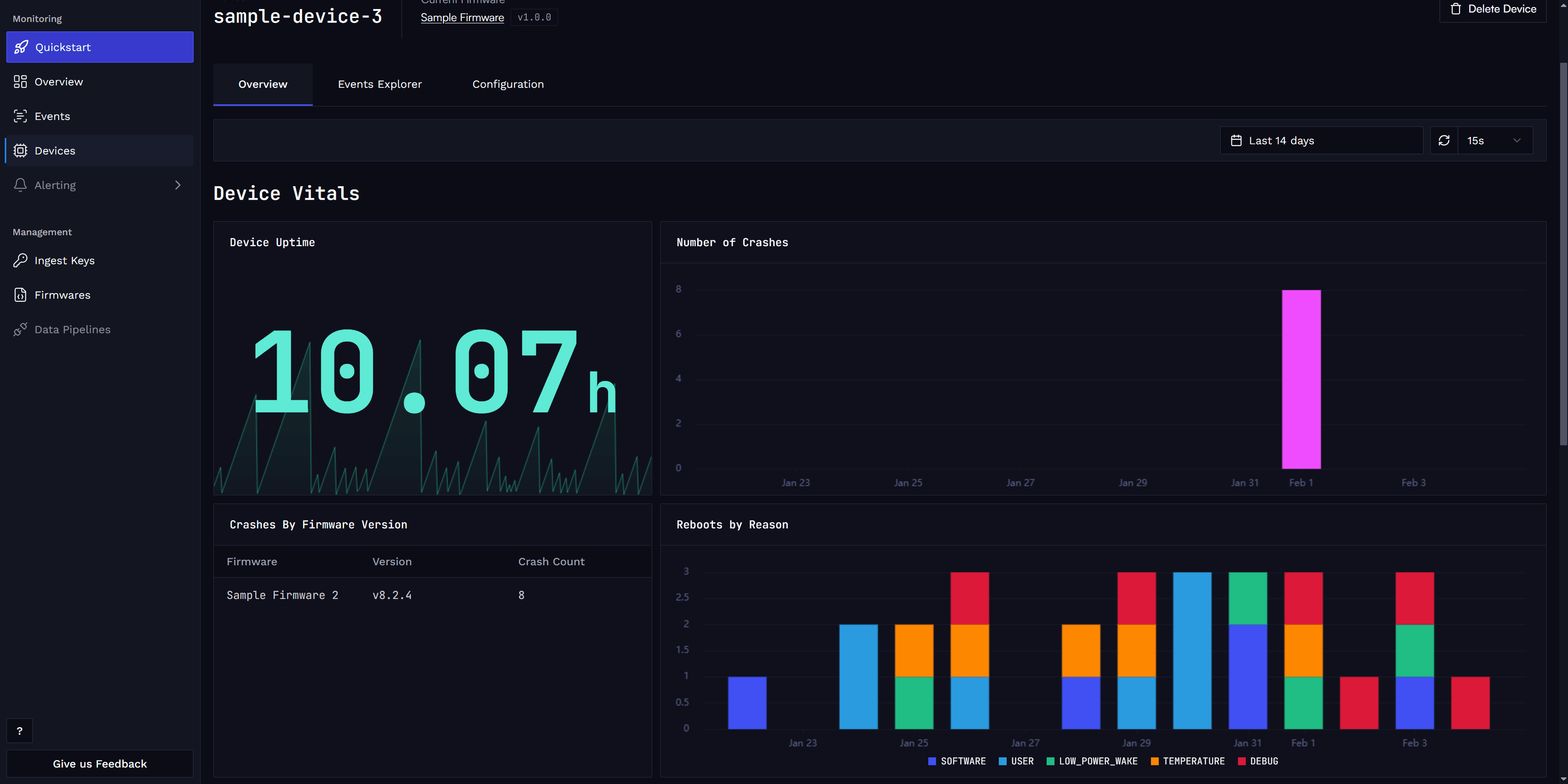
The dashboard is organized into three sections: Device Vitals, Connectivity & Traffic, and Resource Usage sections.
Device Vitals
Device Vitals provides a high-level snapshot of the device’s overall status. This is usually the first place to look when something feels “off” with a device.
This section includes:
- Uptime: how long the device has been running without restarting
- Crashes over time: number of crashes the device has experienced
- Crashes by firmware version: useful when validating new releases
- Reboot reasons: whether restarts are expected (e.g. user initiated) or unexpected (e.g. crashes)
Connectivity & Traffic
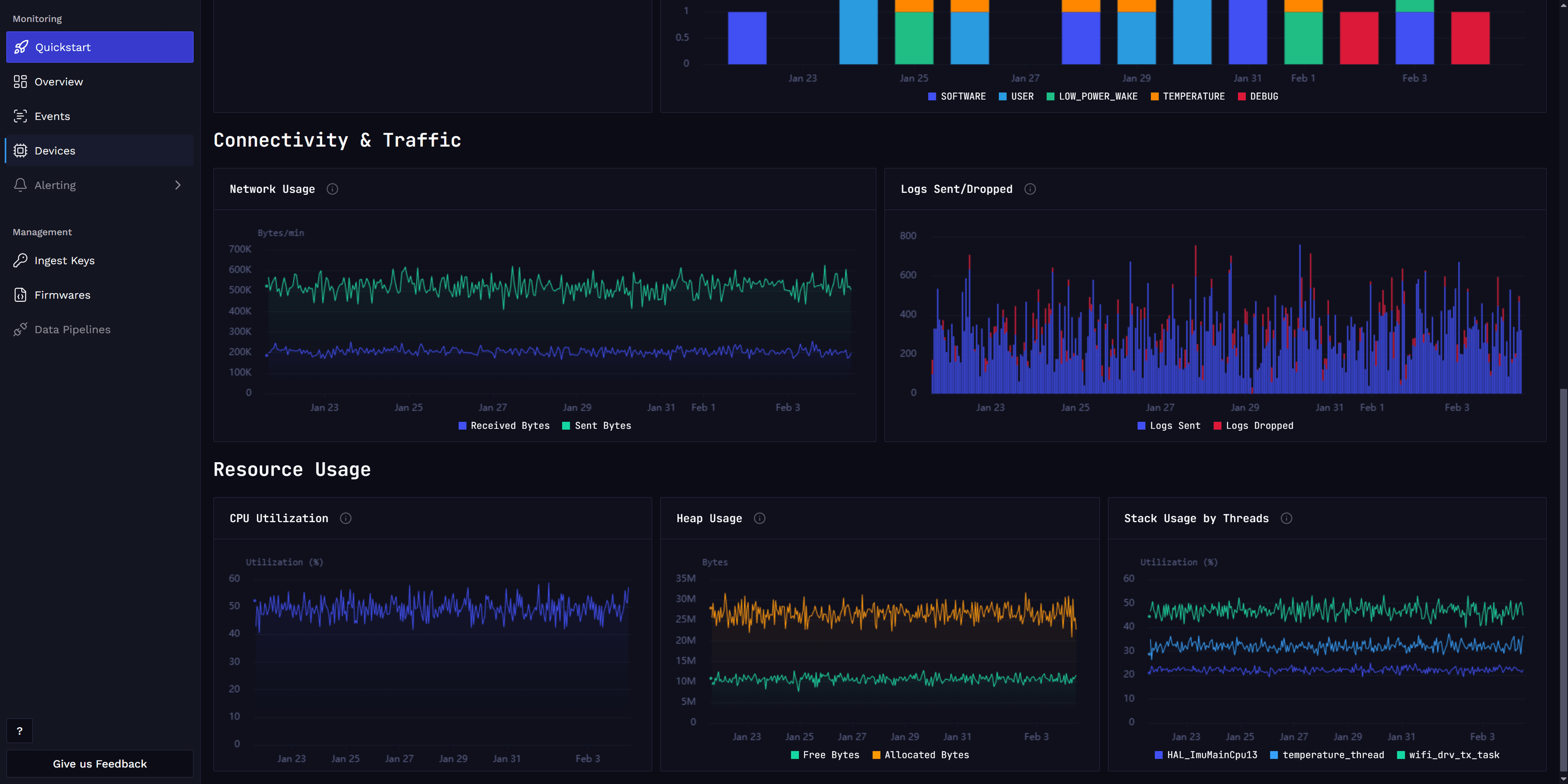
The Connectivity & Traffic section shows how the device communicates with Spotflow and the network.
You can track:
- Sent and received bytes over time: to understand traffic patterns and data volume
- Logs sent vs. logs dropped: the device might drop logs if network connectivity is unavailable and the device buffers are full
Resource Usage
The Resource Usage section helps you understand how close the device is to its hardware limits.
You can monitor:
- CPU utilization over time: to spot performance bottlenecks or spikes
- Heap and stack usage: to detect memory leaks or insufficient memory allocation
Custom Dashboards & Product Analytics
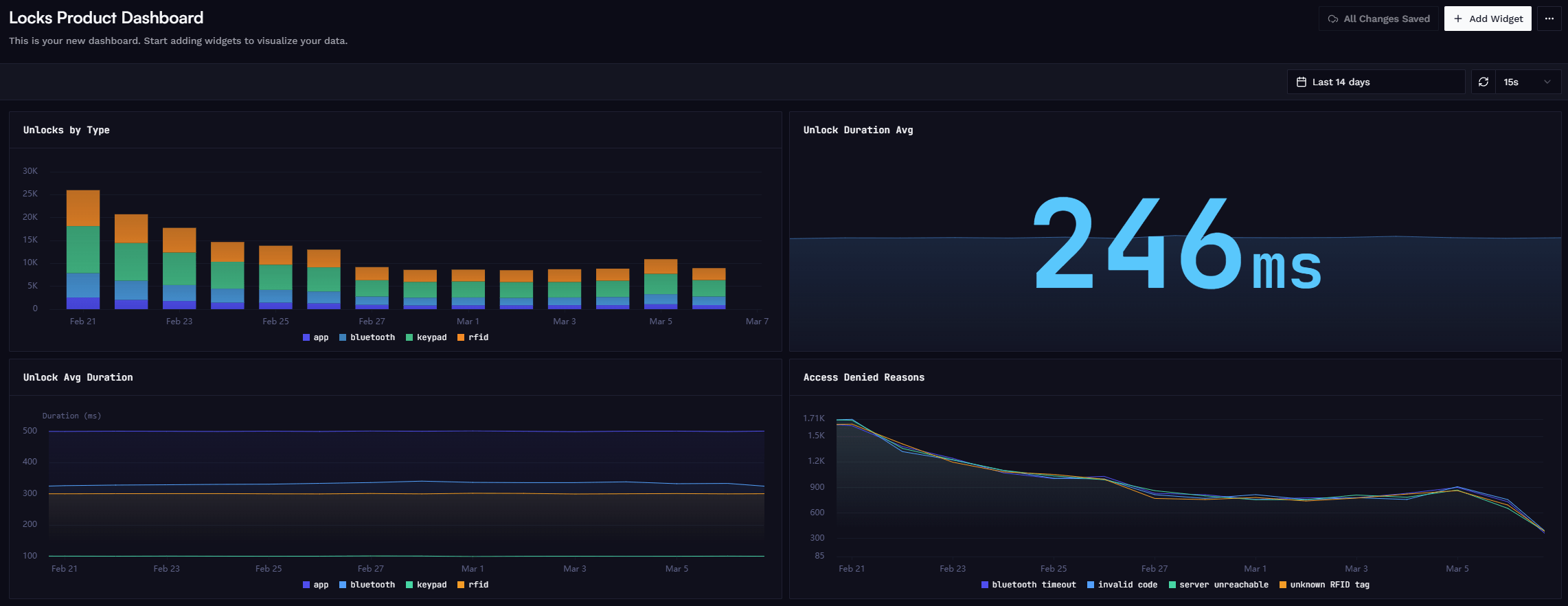
Apart from existing dashboards mentioned above, you can also create custom dashboards to monitor specific aspects of your device fleet or track product usage and user behavior through custom application metrics.
You can create one or more custom dashboards, each containing a set of widgets visualizing relevant metrics.
When adding a widget, you can choose between:
- Any existing Spotflow-premade widgets described above.
- Custom widget.
Custom widgets allow you to specify:
- Tailored data query, based on Spotflow-provided or custom metrics including filters and grouping based on built-in or custom labels.
- Several visualization options such as chart type and units.
See Create Custom Dashboard guide for step-by-step instructions.
Learn more
Fundamentals: Metrics
Guide: Create custom dashboard
Guide: Metrics with Zephyr
Guide: Metrics with MQTT
How is this guide?