Bluetooth Low Energy
Send device telemetry to Spotflow over Bluetooth Low Energy using a gateway, without configuring cloud credentials on the device.
Connect a device to Spotflow through a Bluetooth Low Energy (BLE) gateway. The device sends telemetry over BLE, and the gateway forwards it to Spotflow over the internet using MQTT:
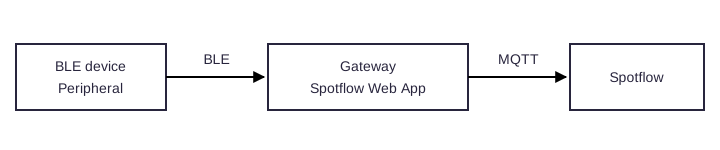
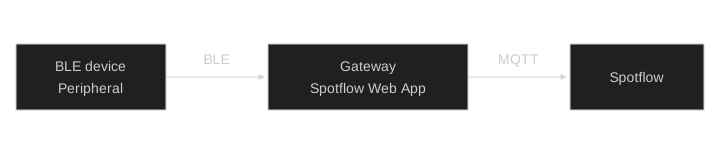
The device acts as a BLE peripheral and exposes the Spotflow GATT service. It does not need its own internet connection or Spotflow ingest key. The gateway acts as a BLE central and authenticates to Spotflow on the device's behalf.
This guide uses the Spotflow Device SDK's Zephyr BLE sample and the Spotflow Web App as a development gateway. The gateway steps apply to any device implementing the Spotflow BLE protocol, regardless of hardware vendor.
Prerequisites
- A Spotflow workspace and an ingest key for that workspace.
- A BLE-capable board supported by your Zephyr version, with the required build and flashing tools.
- A West workspace containing the Spotflow Device SDK as
modules/lib/spotflow. - A computer with Bluetooth Low Energy support and an internet connection.
- A Chromium-based browser with Web Bluetooth support on your operating system. Not all browser and operating system combinations support Web Bluetooth.
For tested boards and vendor-specific workspace setup, start with Silicon Labs or Texas Instruments. Use the manifest, toolchain, and flashing instructions for your board; these are not interchangeable between vendors.
Set up the device and gateway
Configure the device firmware
Use the BLE sample as a starting point. It enables the Spotflow BLE transport and collects telemetry without a direct MQTT connection from the board.
Replace the sample device ID with an identifier that is unique within your Spotflow workspace. Check both prj.conf and the sample's boards/<board>.conf, because a board-specific configuration can override the default:
CONFIG_SPOTFLOW_DEVICE_ID="<your-unique-device-id>"The sample enables the following core options:
CONFIG_SPOTFLOW=y
CONFIG_SPOTFLOW_TRANSPORT_BLE=y
CONFIG_SPOTFLOW_LOG_BACKEND=y
CONFIG_BT=y
CONFIG_BT_PERIPHERAL=y
The sample also enables metrics and crash reports by default, but their availability and storage requirements depend on the board profile. Keep the board-specific configuration and devicetree overlays required by your hardware.
Do not configure CONFIG_SPOTFLOW_INGEST_KEY for BLE. You select the ingest key in the gateway instead. The SDK selects one Spotflow transport per firmware build; use BLE rather than the direct MQTT transport for this workflow.
Build and flash
From the root of your West workspace, build the sample using your board's Zephyr target:
west build --pristine --board <your-board-target> --build-dir build modules/lib/spotflow/zephyr/samples/ble
west flash --build-dir build
Replace <your-board-target> before running the command. Use the vendor-specific guide if your board requires additional build options, overlays, or flashing setup. A BLE radio alone does not guarantee that the sample will run without a board-specific configuration.
Open the board's serial console and confirm that Bluetooth initializes and advertising starts. Note the advertised device name so you can identify it when scanning.
Open the Web App gateway
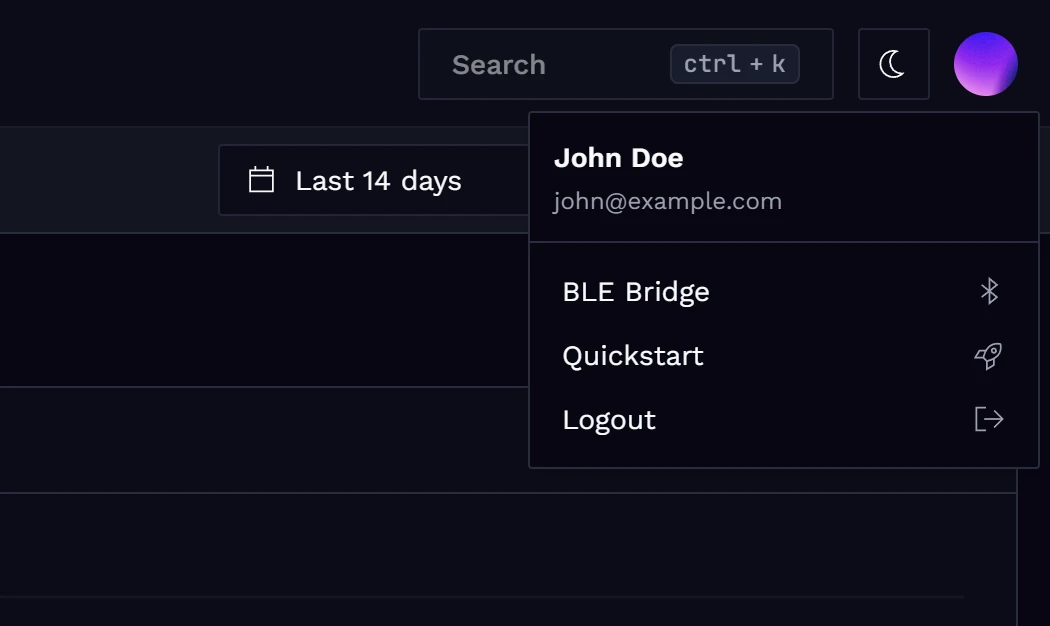
Sign in to the Spotflow Web App and select the workspace where you want to receive telemetry. Open BLE Gateway from the user menu in the top-right corner:
Select an Ingest key for the workspace. This key authenticates the gateway's MQTT connection to Spotflow; it is not stored in the device firmware.
Scan and connect
Turn on Bluetooth on your computer and keep the board nearby. Click Scan for BLE devices, grant the browser permission to access Bluetooth, and select your device from the list.
The scan looks for devices advertising the Spotflow GATT service, not arbitrary BLE peripherals.
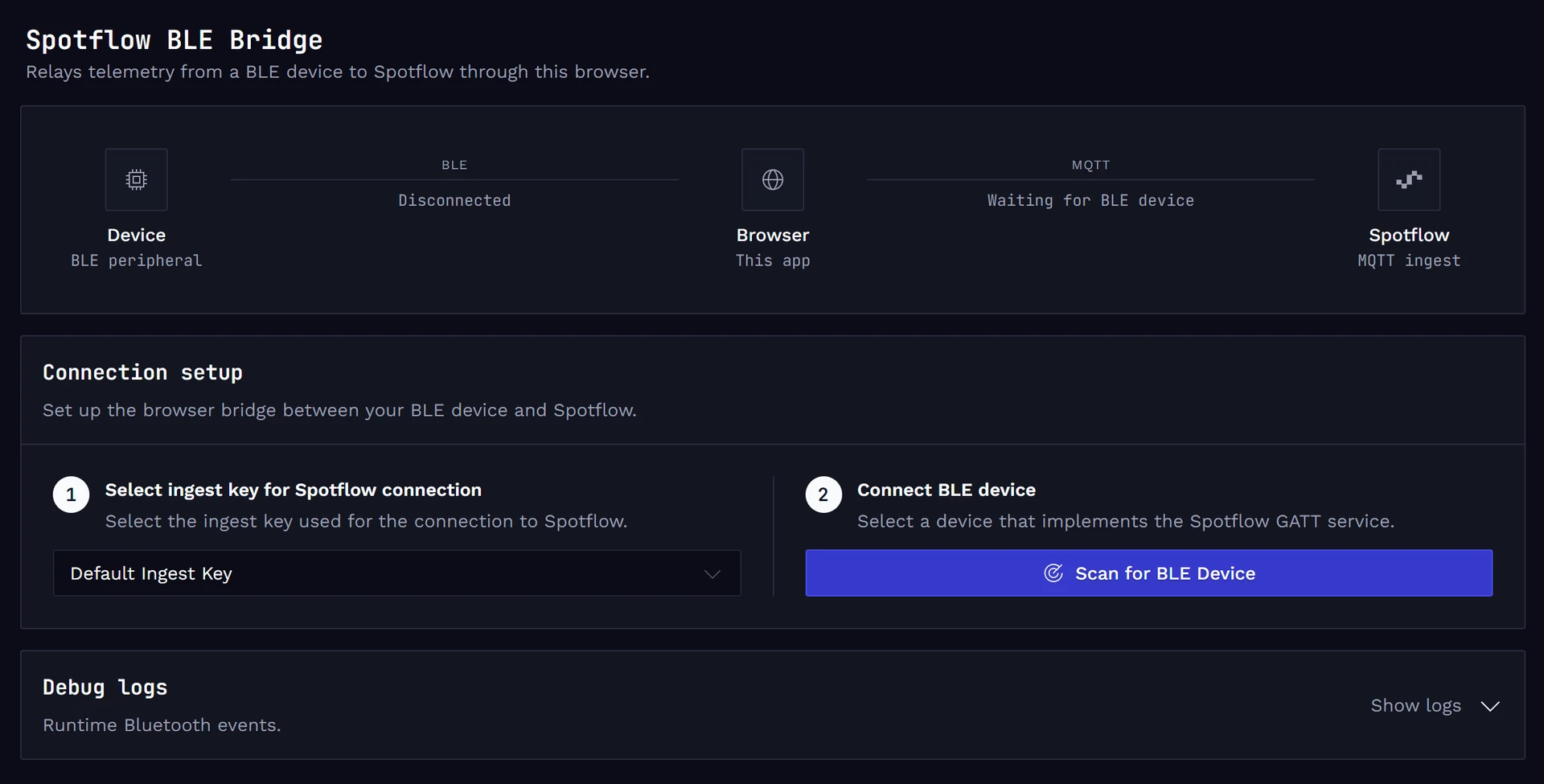
Once connected, the gateway reads the device identity and session metadata, then forwards telemetry to Spotflow over MQTT.
Keep the BLE Gateway page open while testing. Closing the browser or navigating away from the page disconnects the device. After a device restart, reconnect it from the gateway page.
Verify telemetry
Click Open Device Events on the gateway page. Check that logs arrive under the device ID you configured in the firmware. Metrics and crash reports are available when enabled and supported by the board configuration.
To analyze crash reports, upload the matching build/zephyr/zephyr.elf file to the firmware version in Spotflow. See Firmware Management for details, and follow your board-specific guide for triggering a test crash.
Troubleshooting
| Symptom | What to check |
|---|---|
| Bluetooth scanning is unavailable | Use a browser and operating system combination that supports Web Bluetooth, enable Bluetooth, and allow browser Bluetooth permissions. |
| The device does not appear in the scan | Confirm in the serial console that advertising started and that the firmware exposes the Spotflow GATT service. Keep the device nearby and disconnect any other gateway connected to it. |
| The device connects but no telemetry appears | Check the selected workspace and ingest key, the gateway's internet connection, and the device ID used to filter Device Events. Confirm that the firmware enables the Spotflow log backend and generates logs. |
| Telemetry stops after a restart or page navigation | Return to the BLE Gateway page, scan, and reconnect the device. Keep the page open. |
| Metrics or crash reports are missing | Check the board profile: resource-constrained boards may disable metrics or require a specific crash-report storage configuration. |
Beyond the browser gateway
The Web App gateway is intended for development and testing. Browser Bluetooth APIs provide limited control over the BLE stack, and the connection depends on keeping the gateway page open.
For a dedicated gateway implementation, use the BLE protocol reference, which documents the GATT service, message framing, MQTT forwarding flow, and current delivery guarantees.