Programmatic access
Automate Spotflow with the Management API, for example by rolling out OTA updates from your CI/CD pipeline.
Everything you can do in the Spotflow web application is also available through the Management API. You can automate tasks such as:
- Rolling out Over-the-Air (OTA) updates straight from your release pipeline: upload the new firmware image and its symbol file, deploy it to a group of devices, and stop or roll back the deployment if something goes wrong. This guide walks you through it below.
- Provisioning devices from your manufacturing systems: create ingest keys for new devices and tag them.
- Exporting data to your own reports with List events and Query metrics.
- Managing alert rules and dashboards as code with the Alert rules and Dashboards endpoints.
- Debugging with AI assistants. Give your AI assistant access to logs, metrics, and crash reports from your devices, so it can help you find and fix bugs in your firmware.
Roll Out OTA Updates from CI/CD
Let your release pipeline deliver new firmware to your devices.
The example below uses GitHub Actions: when you publish a GitHub release with the firmware image and ELF file attached, it creates a new firmware version in Spotflow and deploys it to a deployment cohort.
Other CI systems can be configured similarly, as long as they can run curl commands or use HTTP clients to interact with the Spotflow Management API.
Prepare the Firmware and Deployment Cohort
Make sure your devices can receive OTA updates, see Deploy Over-the-Air (OTA) updates.
Create the firmware on the Firmwares page and a deployment cohort with the devices to update on the Deployment Cohorts page.
Open each of them and copy its ID from the URL, it is the part after /firmwares/ and /ota-updates/ respectively. We will need them in the next steps.
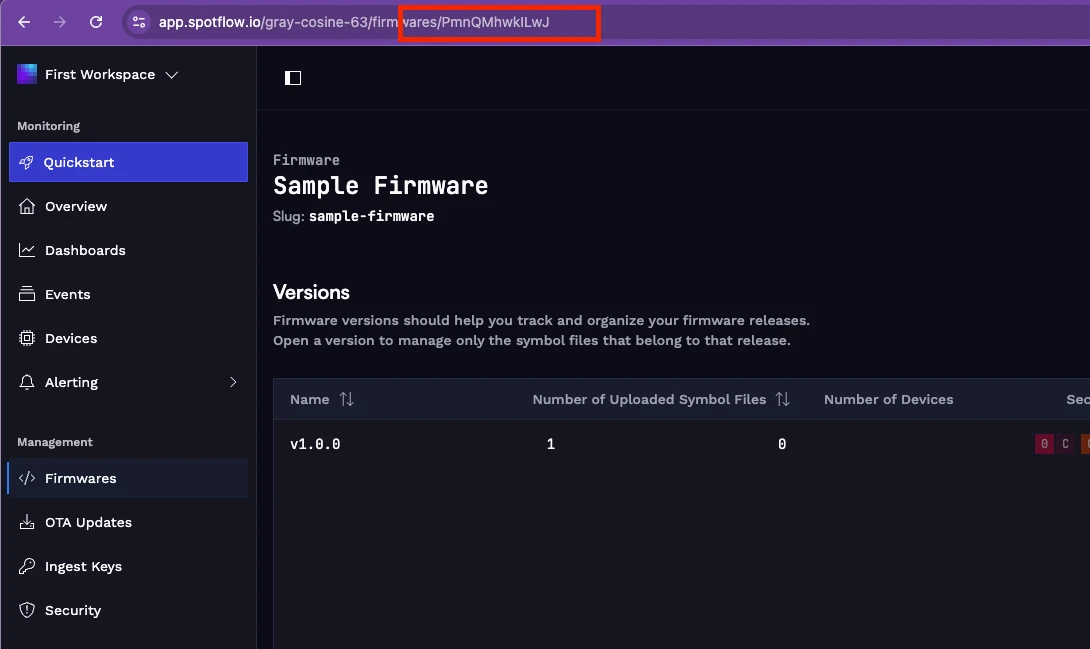
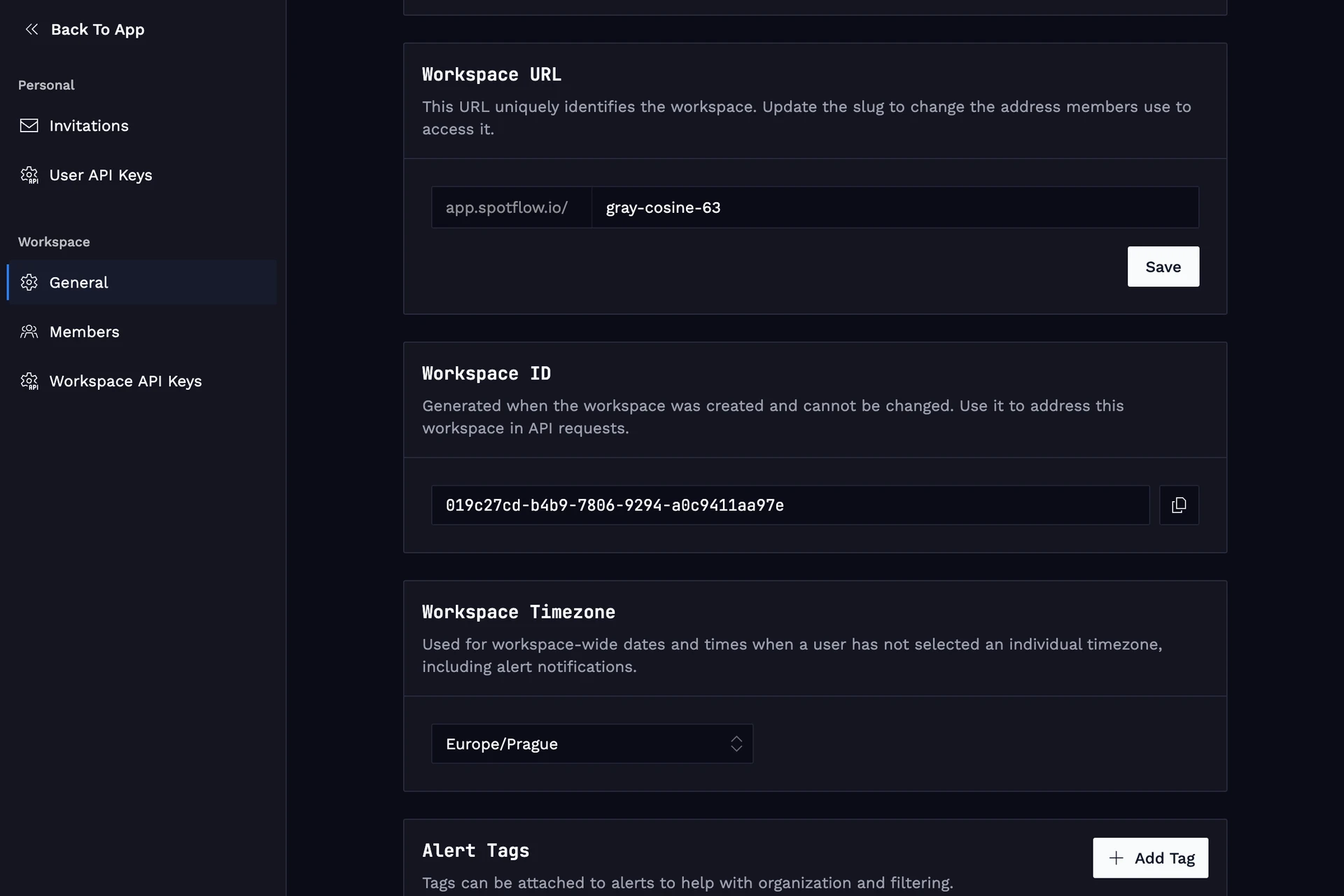
Then copy the workspace ID (workspace URL will not work) from the workspace general settings.
Create a Workspace API Key
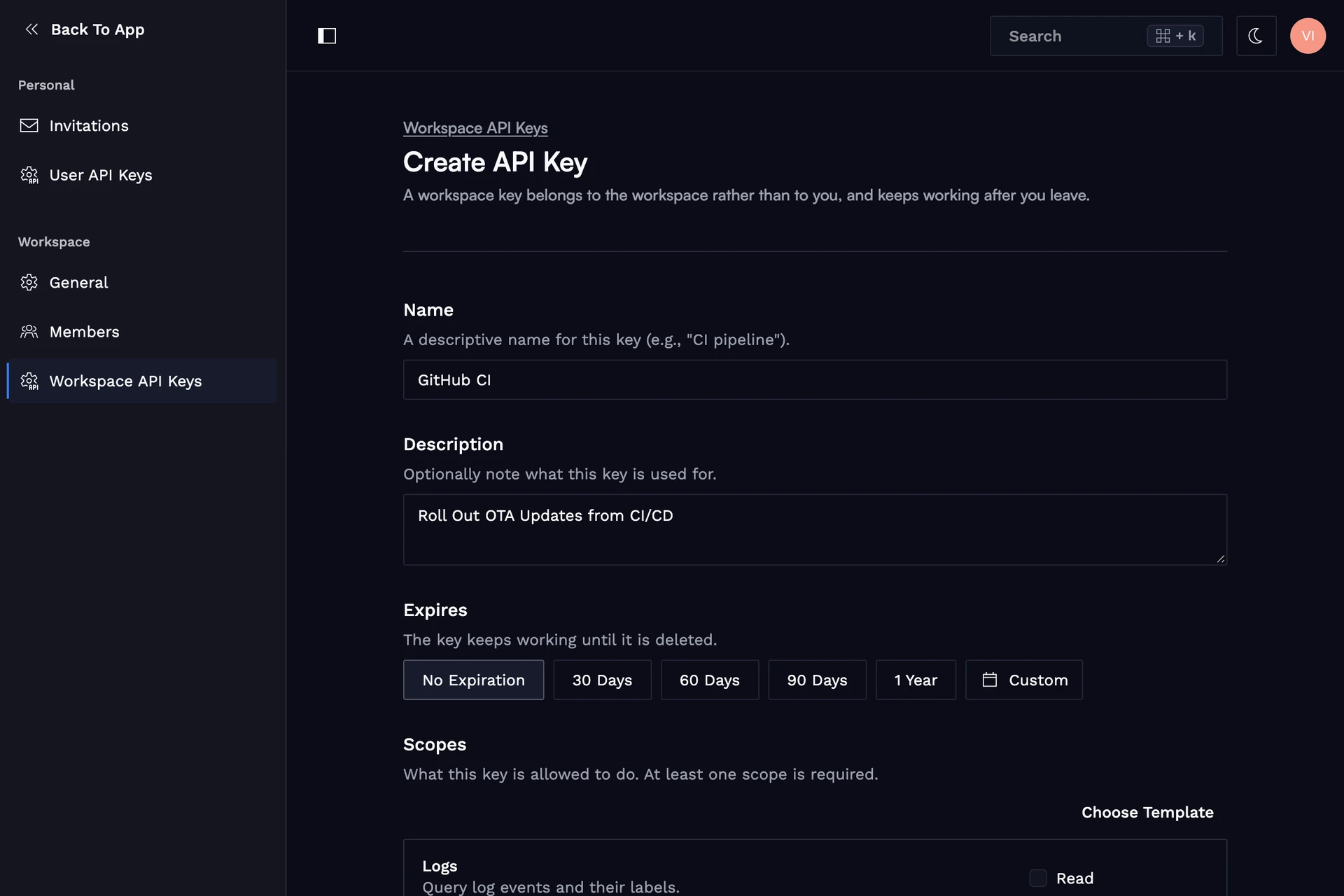
Create a workspace API key in the workspace settings as described in Authentication. Unlike a user API key, it belongs to the workspace and can be managed by any member, so the pipeline keeps working when team members come and go.
API keys are meant for tools and people. Devices connect with ingest keys instead.
Give the key write scopes to Firmwares, Symbol files, and Deployments, and store it as a secret named SPOTFLOW_API_KEY in your CI system.
Add the Workflow
Replace the placeholders with the IDs you copied, and set IMAGE_FILE and ELF_FILE to the names of the files you attach to your releases.
name: Roll out firmware

on:
  release:
    types: [published]

jobs:
  rollout:
    runs-on: ubuntu-latest
    permissions:
      contents: read
    env:
      SPOTFLOW_API_KEY: ${{ secrets.SPOTFLOW_API_KEY }}
      WORKSPACE_URL: https://api.spotflow.io/workspaces/<workspace-id>
      FIRMWARE_ID: <firmware-id>
      COHORT_ID: <deployment-cohort-id>
      IMAGE_FILE: zephyr.signed.bin
      ELF_FILE: zephyr.elf
    steps:
      - name: Download release files
        env:
          GH_TOKEN: ${{ github.token }}
        run: gh release download "$GITHUB_REF_NAME" --repo "$GITHUB_REPOSITORY" --pattern "$IMAGE_FILE" --pattern "$ELF_FILE"

      - name: Create firmware version
        run: |
          curl --fail-with-body --silent --show-error \
            --header "Authorization: Bearer $SPOTFLOW_API_KEY" \
            --form "name=$GITHUB_REF_NAME" \
            --form "file=@$IMAGE_FILE" \
            "$WORKSPACE_URL/firmwares/$FIRMWARE_ID/versions" \
            > version.json

      - name: Upload symbol file
        run: |
          curl --fail-with-body --silent --show-error \
            --header "Authorization: Bearer $SPOTFLOW_API_KEY" \
            --form "file=@$ELF_FILE" \
            --form "alias=$GITHUB_REF_NAME" \
            "$WORKSPACE_URL/firmwares/$FIRMWARE_ID/versions/$(jq -r '.id' version.json)/symbol-files"

      - name: Create deployment
        run: |
          jq -c --arg name "$GITHUB_REF_NAME" \
            '{name: $name, artifacts: [{firmware: {firmwareVersionId: .id, isMain: true}}]}' \
            version.json |
          curl --fail-with-body --silent --show-error \
            --header "Authorization: Bearer $SPOTFLOW_API_KEY" \
            --header "Content-Type: application/json" \
            --data @- \
            "$WORKSPACE_URL/deployment-cohorts/$COHORT_ID/deployments"
The workflow creates a firmware version named after the release tag with the firmware image,
uploads the symbol file to it,
and creates a deployment that becomes the active deployment of the cohort.
isMain: true marks the firmware as the main one, which the Spotflow device module installs itself.
Watch the Rollout
Publish a release with the firmware image and ELF file attached, and wait for the workflow to finish. Devices in the cohort start receiving the update, and you can follow the progress on the deployment detail page.
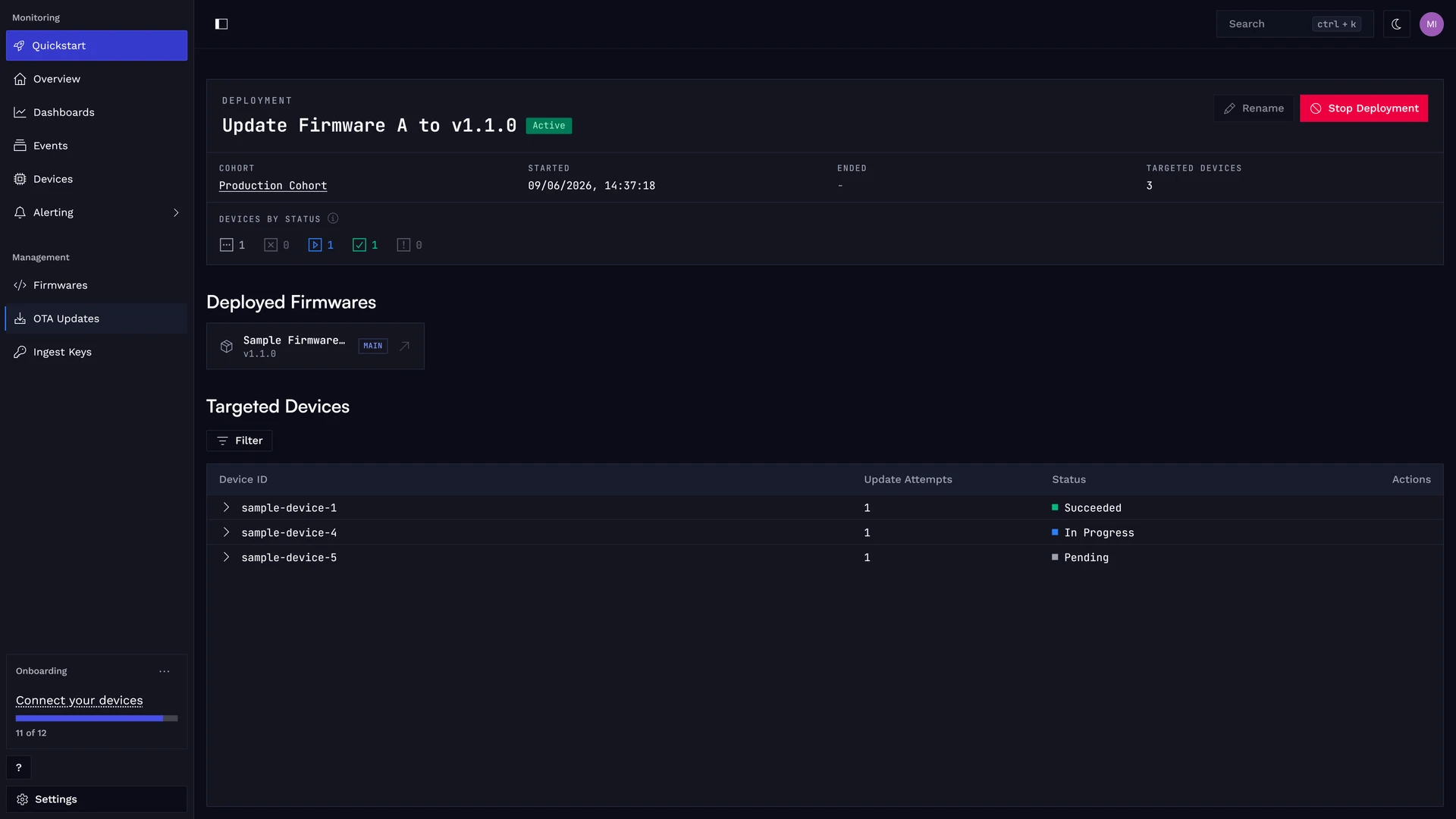
If something goes wrong, stop or roll back the deployment in the web application, or with the Stop deployment and Roll back deployment endpoints.
Because the symbol file is attached to the version, crash reports from updated devices are decoded automatically. See Build IDs for details.
Point the workflow to a small test cohort first, and deploy to the rest of your fleet once the update proves healthy.