Invite members to your workspace
Learn how to invite members to your Spotflow workspace and manage their access.
Invite Members to your Workspace
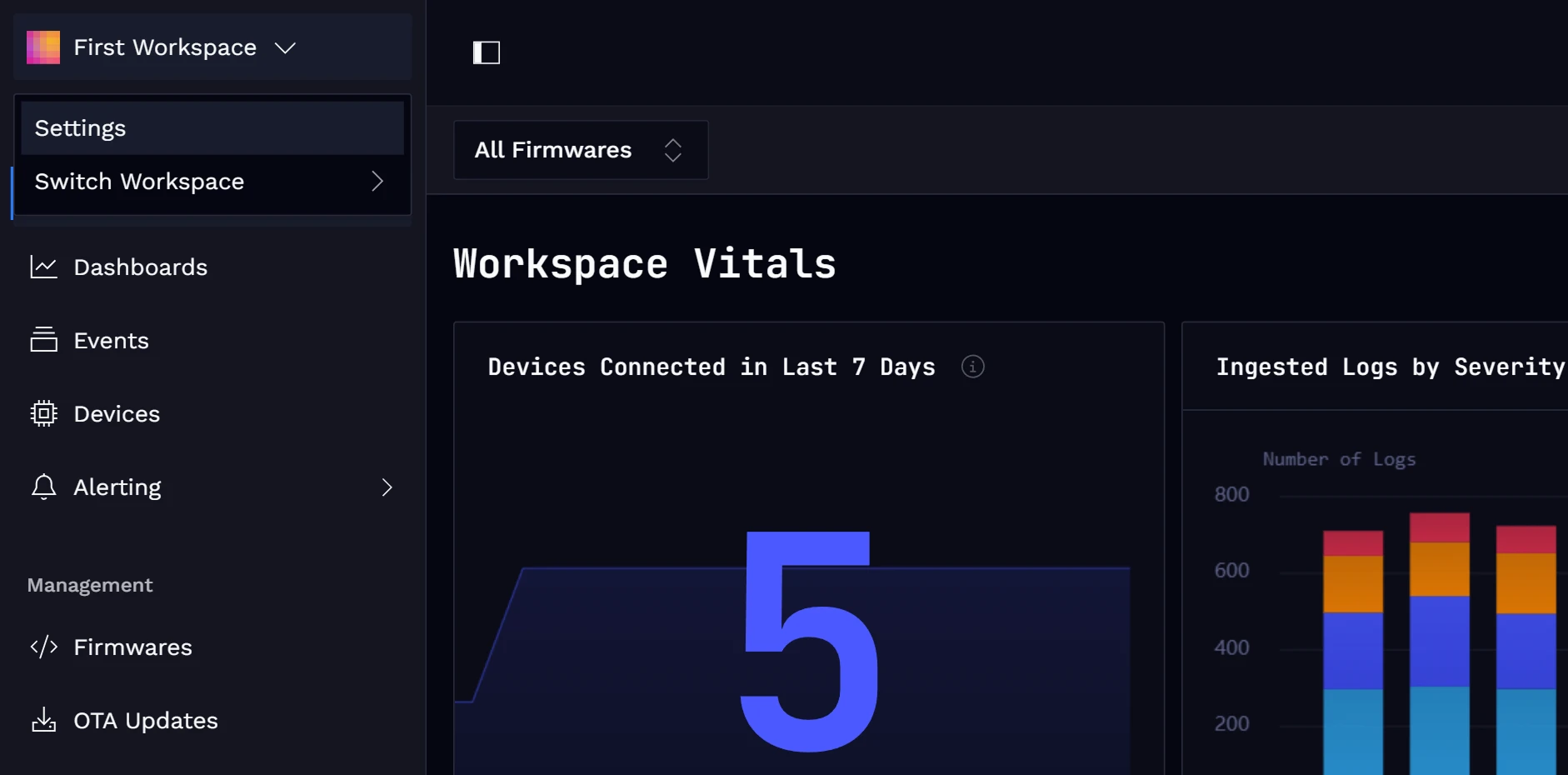
Select the workspace you want to invite members to, click on its name in the top-left corner, and choose
Settings from the dropdown menu.
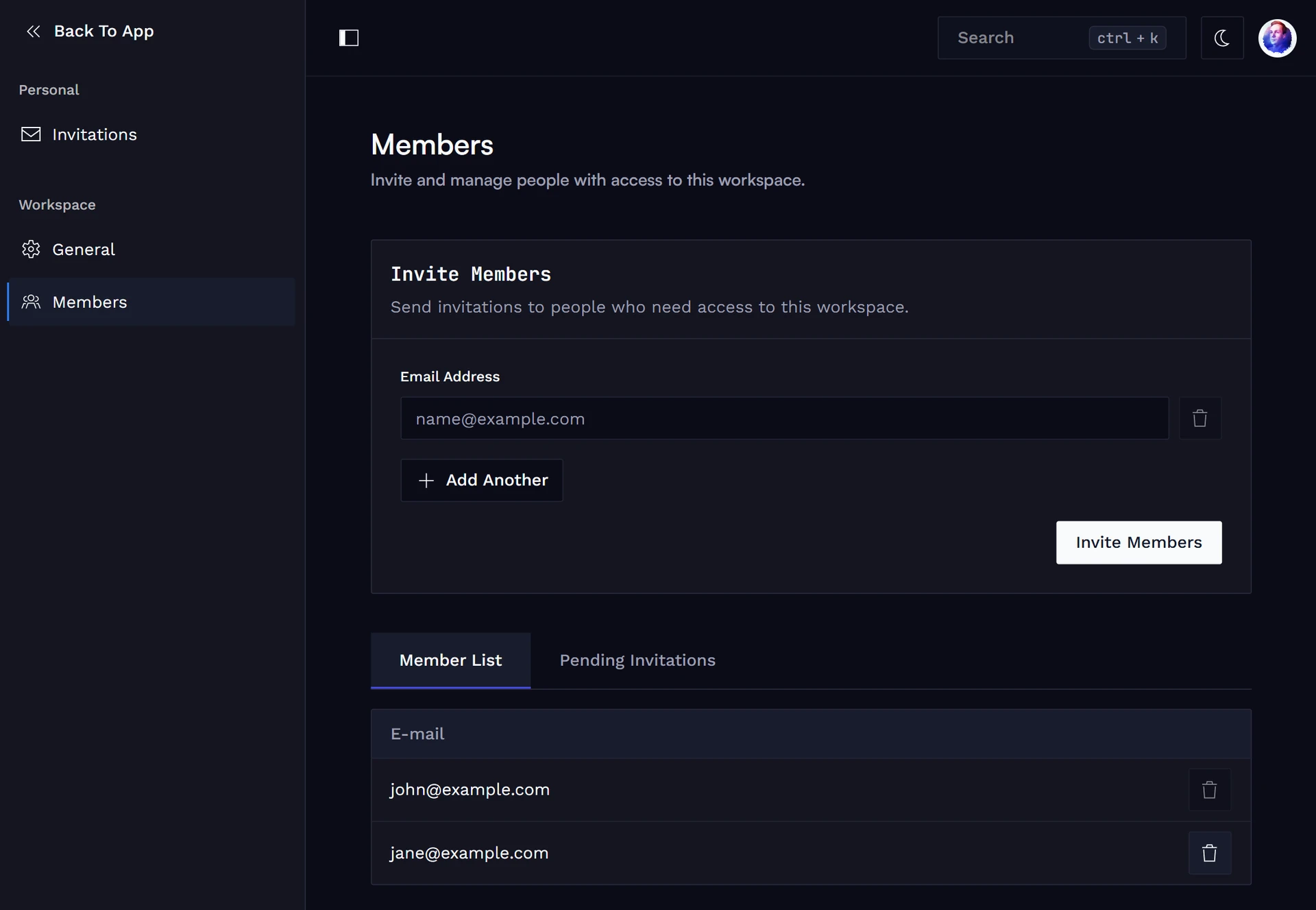
Under the Workspace section, click on Members.
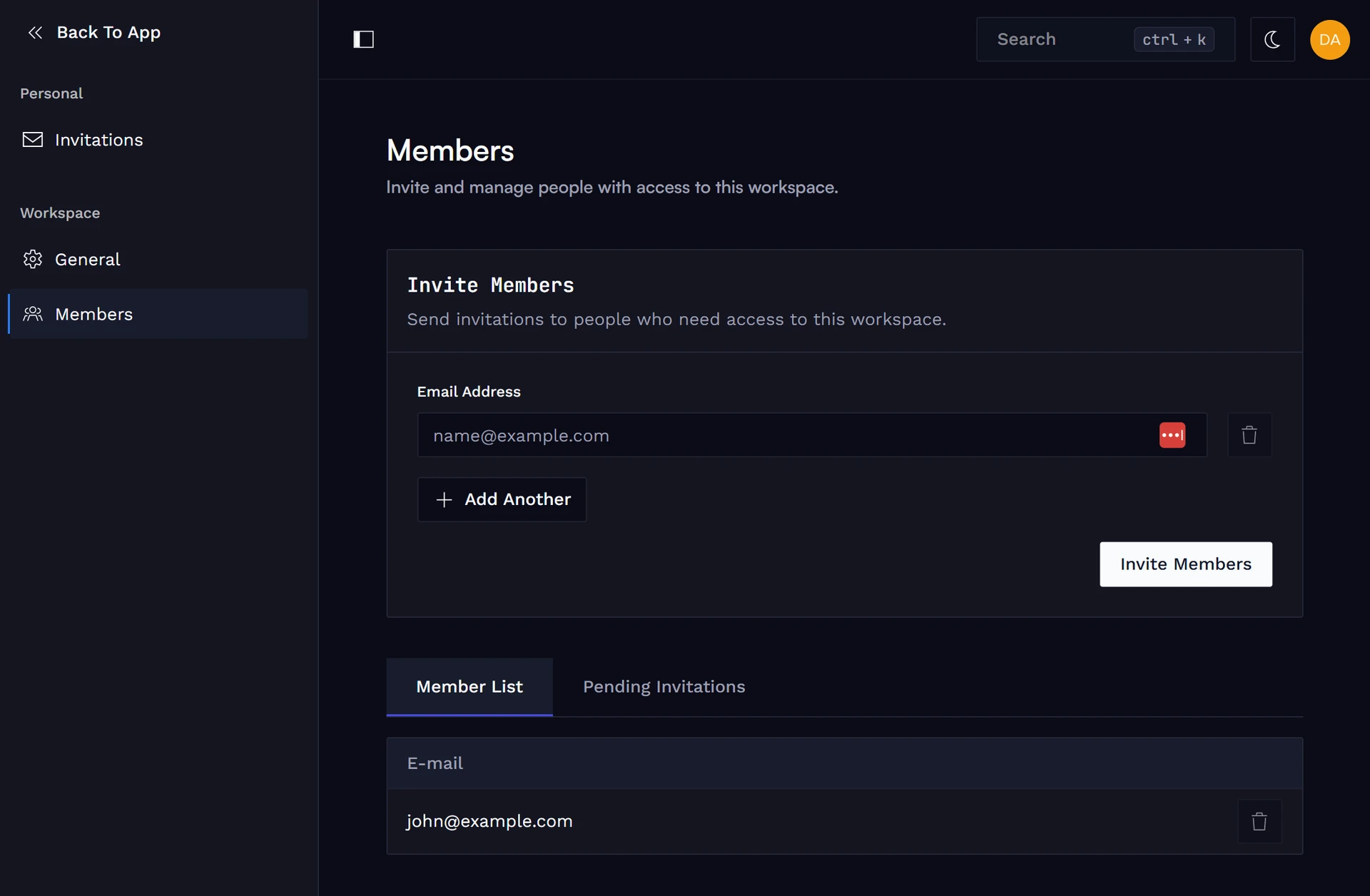
Enter the email address of the person you want to invite. Use Add Another to invite several people at once,
then click on Invite Members.
Below the invite form, the Member List tab shows current members and the Pending Invitations tab shows
people who haven't accepted yet.
Accept the Invitation
The invited members receive an email titled "You've been invited to join <Workspace> on Spotflow". They
open it and click Accept Invitation.
They are taken to Spotflow to sign in with the invited email address. If they don't have a Spotflow account yet,
they can create one using Sign up or a social login.
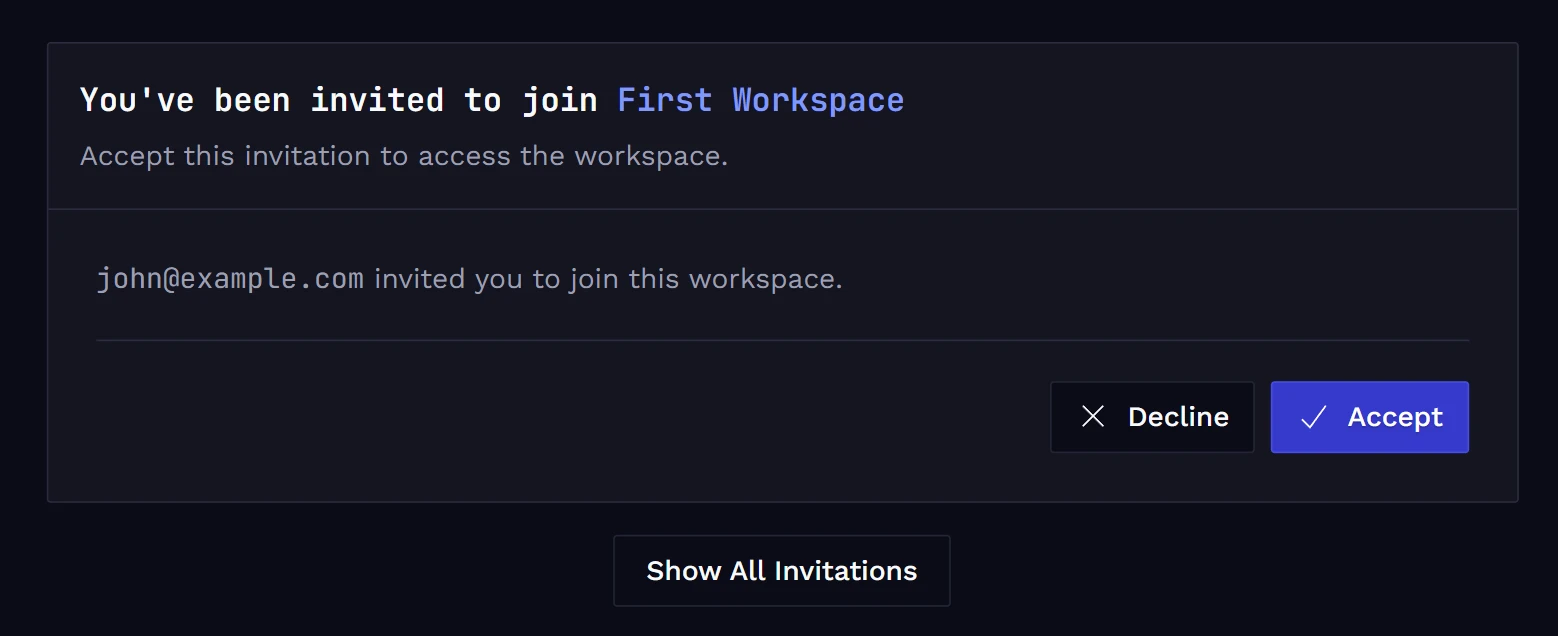
After signing in or creating an account, the invited members can accept the invitation to join the workspace by
clicking on Accept.
Switch Workspaces
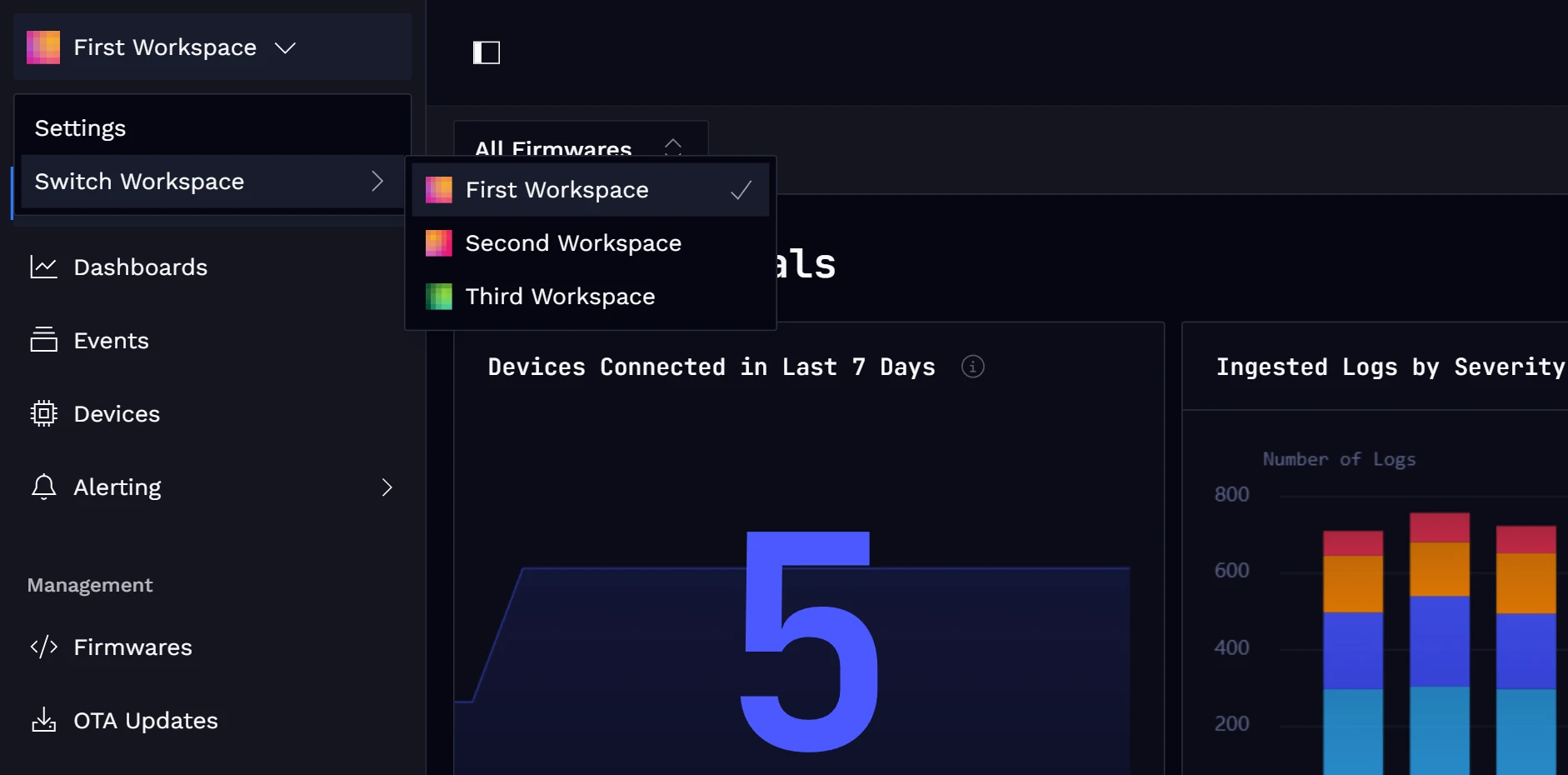
After accepting the invitation, the invited members can switch between the invited workspace and their own by clicking on the workspace name in the top-left corner and selecting the desired workspace from the dropdown menu.
Remove a Member (Optional)
To revoke someone's access, go back to Settings → Members. On the Member List tab, click the trash
icon next to the member you want to remove. To cancel an invitation that hasn't been accepted yet, do the same
on the Pending Invitations tab.