Over-the-air (OTA) updates on TI CC35X1
Update TI CC35X1 firmware over Wi-Fi or a BLE gateway using TI PSA FWU.
Follow this guide to update an LP-EM-CC35X1 with CC3551E remotely through Spotflow, using either Wi-Fi or a BLE gateway. Both transports use TI's PSA Firmware Update (FWU) service to install a signed vendor image: the application firmware that runs the Spotflow device module.
Use the PSA OTA sample for Wi-Fi, or the BLE sample with its OTA configuration for BLE. Both supply the OTA configuration and confirmation code used below. When adapting it for your own application, see Differences from the Zephyr OTA guide below.
Run the PSA OTA sample
Install prerequisites
Install the host tools for your operating system using the Install dependencies section of the Zephyr Getting Started Guide.
You also need:
- An LP-EM-CC35X1 board with CC3551E
- An LP-XDS110 or LP-XDS110ET debug probe connected to the board's 20-pin J7 header
- SimpleLink Wi-Fi Toolbox 4.3.23
Before building, add Toolbox to PATH. Before flashing, set up XDS110 host access.
This guide uses lp_em_cc35x1/cc3551e with the is25wj032f/ota flash profile.
For Wi-Fi, you also need a 2.4 GHz network with internet access. For BLE, prepare a computer and browser meeting the BLE gateway prerequisites.
Prepare the West workspace
Create a workspace using the Spotflow west-zephyr-ti-cc35x1.yml manifest. It selects TI SimpleLink Zephyr v4.4.0-ti-10.10.00 and the required modules.
mkdir spotflow-cc35
cd spotflow-cc35
python3 -m venv .venv
source .venv/bin/activate
pip install west

west init \
  --manifest-url https://github.com/spotflow-io/device-sdk \
  --manifest-file zephyr/manifests/west-zephyr-ti-cc35x1.yml \
  .
west update --fetch-opt=--depth=1 --narrow
west packages pip --install
west sdk install --version 1.0.1 --toolchains arm-zephyr-eabi
Apply both compatibility patches from the workspace root before continuing. Stop before activation and factory programming; those steps require the sample built below.
Configure the sample
Copy modules/lib/spotflow/zephyr/samples/ota_psa/credentials-sample.conf to credentials.conf in the same directory, then enter:
CONFIG_NET_WIFI_SSID="<your-Wi-Fi-SSID>"
CONFIG_NET_WIFI_PASSWORD="<your-Wi-Fi-password>"
CONFIG_SPOTFLOW_DEVICE_ID="<your-unique-device-id>"
CONFIG_SPOTFLOW_INGEST_KEY="<your-ingest-key>"
Copy an ingest key from the ingest keys page.
The device ID must be unique within your Spotflow workspace. Both samples provide OTA configuration and confirmation code; no application code changes are needed for this walkthrough.
Build and flash the sample
Both samples and the activation example use TI's public development keys. For production, configure your own signing keys and matching provisioning before building and activating the board.
From the workspace root, build the first version:
west build --pristine -b lp_em_cc35x1/cc3551e -d build modules/lib/spotflow/zephyr/samples/ota_psaFor an unactivated development board, run only the Activate the device once step in one-time activation, using this build's programming image. Skip activation if the board is already activated. Then program the sample's OTA layout:
west flash -d build -- --initial-programmingIf migrating a board from another flash layout, use this command instead:
west flash -d build -- --initial-programming --full-flash-eraseA full flash erase removes saved settings, Wi-Fi profiles and keys. Use it when migrating layouts so old images cannot block PSA updates. See Flash layout for why factory programming is needed.
Verify the connection
Open the serial console and reset the board.
Check for TI vendor image version: 0.0.1.0 in the startup output. Confirm that the board connects to Wi-Fi, obtains an IP address and establishes an MQTT connection to Spotflow.
Keep the first version running while you prepare the update.
Build an update
Increase the vendor image version in the configuration for your chosen sample:
- Wi-Fi:
modules/lib/spotflow/zephyr/samples/ota_psa/prj.conf. - BLE:
modules/lib/spotflow/zephyr/samples/ble/boards/lp_em_cc35x1_cc3551e-ota.conf.
CONFIG_CC35XXE_VENDOR_IMAGE_VERSION="0.0.2.0"Rebuild from the workspace root:
west build -d buildKeep this build for deployment in the next step, leaving the first version running on the board. Changing the version is sufficient to produce a distinct update; see Vendor image versions and build IDs.
Deploy and verify the update
Follow Deploy Over-the-Air (OTA) Updates to upload a firmware version and create a deployment for your device. Use the complete signed vendor container from the update build as the main firmware image:
build/zephyr/flash/vendor_image.sign.binKeep the matching build/zephyr/zephyr.elf for decoding crash reports and debugging.
After starting the deployment, wait for the installation and confirmation reboots. The sample confirms the new image automatically for demonstration.
Verify that the board restarts and reconnects to Spotflow, directly over Wi-Fi or through the BLE gateway.
The Wi-Fi sample also logs vendor image version 0.0.2.0 and confirmed startup (phase=NOT_RUNNING result=1, where 1 means success).
In the portal, check that the update attempt is Succeeded and the device reports the update build's build ID.
Immediate confirmation can reset the sample before deferred UART messages about UNCONFIRMED or acceptance appear. Their absence alone does not indicate failure.
Differences from the Zephyr OTA guide
The general Zephyr OTA guide integrates OTA into an application using MCUboot. The TI samples use TI's native bootloader and PSA FWU instead. The Spotflow application API, OTA messages and persistent result storage are shared. With BLE, the gateway relays those messages and downloads artifacts; the device's firmware handling and confirmation sequence remain the same. The following differences matter when adapting the sample to your own application.
PSA FWU configuration
Both sample profiles enable persistent settings, TI PSA FWU and automatic main-firmware handling. The Wi-Fi sample supplies these in prj.conf; the BLE sample combines ota.conf with its TI OTA board configuration:
# Shared OTA configuration and persistent state storage
CONFIG_SPOTFLOW=y
CONFIG_SPOTFLOW_OTA=y
CONFIG_SPOTFLOW_OTA_AUTO_HANDLE_MAIN_FIRMWARE=y
CONFIG_SETTINGS=y
CONFIG_NVS=y
CONFIG_SETTINGS_NVS=y

# TI PSA FWU service and Spotflow backend
CONFIG_CC35XXE_FWU=y
CONFIG_SPOTFLOW_OTA_MAIN_FIRMWARE_PSA_FWU=y

# Generate the is25wj032f/ota flash layout and version the signed image
CONFIG_CC35XXE_GENERATE_FLASH_MAP_CONFIG=y
CONFIG_CC35XXE_FLASH_PROFILE_IS25WJ032F=y
CONFIG_CC35XXE_VENDOR_IMAGE_VERSION="0.0.1.0"
Build with TI's native image-packaging pipeline, without --sysbuild or SB_CONFIG_BOOTLOADER_MCUBOOT from the general guide.
For module installation in your own application, follow the shared installation instructions using the TI workspace prepared above.
Use the configuration and overlays for your chosen transport together:
- Wi-Fi: the board configuration and overlay provide settings storage and network configuration. The TLS buffer and heap settings allow MQTT and artifact HTTPS downloads to coexist.
- BLE: the OTA overlay reuses the TI OTA layout and divides application storage between settings and minimal crash reports. Keep the BLE board profile's
CONFIG_MBEDTLS_PSA_P256M_DRIVER_ENABLED=nwhen enabling pairing on this TI downstream; it preserves the EC functions required by TI's radio library.
See the shared OTA Kconfig reference for options controlling downloads and the OTA worker.
Flash layout
Both samples require the generated is25wj032f/ota profile, which reserves two physical vendor slots and persistent settings storage. Include OTA support and the matching layout in both the baseline and candidate firmware.
Factory programming installs this layout; an OTA deployment cannot migrate a board from the ordinary single-slot Wi-Fi or BLE layout.
A pristine build changes only the host build outputs.
The module downloads into the inactive vendor slot and requests installation with rollback enabled. The slots alternate roles after each successful update. TI maps either slot into the same execution address range, so one signed image works in both slots. The wireless slots contain TI connectivity firmware needed by the Wi-Fi driver; the sample updates only the vendor application.
Changing the profile requires a matching overlay and factory layout. The Wi-Fi PSA sample rejects other boards, flash profiles and custom map overrides because its overlay contains fixed addresses. The BLE OTA overlay uses the same fixed TI memory map. See the sample's memory-layout notes for the allocations and image-size limit.
Signed vendor images and keys
TI produces build/zephyr/flash/vendor_image.sign.bin rather than the MCUboot zephyr.signed.bin used in the general guide.
Upload the entire signed container, including its TI metadata. The bootloader verifies its signature against the provisioned key.
The default development keys are public. For production, set these options before building and provision the board with the matching public key and activation credentials:
CONFIG_CC35XXE_SIGN_PRIVATE_KEY_FILE="/absolute/path/to/private-key.pem"
CONFIG_CC35XXE_SIGN_PUBLIC_KEY_FILE="/absolute/path/to/public-key.pem"
On Windows, use forward slashes in these paths, for example C:/keys/private-key.pem.
Vendor image versions and build IDs
TI requires each update to have a newer numeric container version, set by CONFIG_CC35XXE_VENDOR_IMAGE_VERSION when building.
The version string entered in the Spotflow portal is separate and does not set this value.
Spotflow also requires an update to have a different build ID from the running image.
CONFIG_SPOTFLOW_BUILD_ID_INCLUDE_TI_VENDOR_IMAGE_VERSION is enabled by default for the TI OTA provider, so incrementing only the numeric version changes the build ID.
The Wi-Fi sample logs the configured vendor image version at startup to help verify which image is running. For either transport, the reported build ID identifies the deployed image in Spotflow.
Confirmation and the extra reboot
With MCUboot, spotflow_confirm_main_firmware_image() makes the trial image permanent and schedules success reporting without another reboot.
On TI, the same call requests PSA acceptance but leaves the update UNCONFIRMED until a further reboot makes acceptance durable.
The call itself never reboots. The application must then call psa_fwu_request_reboot().
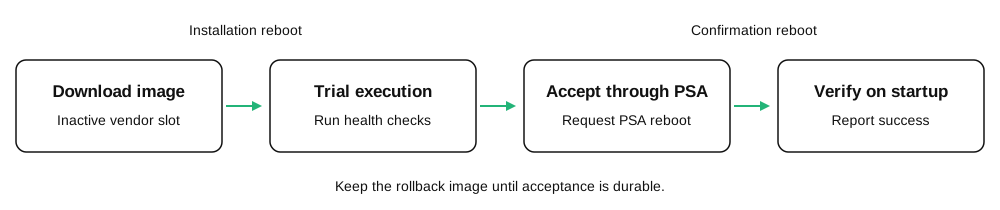

Both samples accept the new image immediately for demonstration and request that confirmation reboot; see the Wi-Fi and BLE implementations. For production, run application health checks before confirming, as in the general Zephyr confirmation step, and retain the TI reboot sequence:
#include <errno.h>
#include <spotflow/ota.h>
#include <psa_fwu.h>

/* Call only after application health checks succeed. */
static int confirm_validated_main_firmware(void)
{
    struct spotflow_ota_main_firmware_state state;
    int rc = spotflow_get_main_firmware_update_state(&state);

    if (rc < 0 || state.phase != SPOTFLOW_OTA_PHASE_UNCONFIRMED) {
        return rc;
    }

    rc = spotflow_confirm_main_firmware_image(&state);
    if (rc < 0) {
        return rc;
    }

    if (state.phase == SPOTFLOW_OTA_PHASE_UNCONFIRMED) {
        return psa_fwu_request_reboot() == PSA_SUCCESS ? 0 : -EIO;
    }
    return 0;
}
Use psa_fwu_request_reboot() for the confirmation reboot.
TI keeps the acceptance request in RAM until this call transfers it to the bootloader; sys_reboot() loses that request.
On the next startup, the module verifies that the expected build ID is running and that confirmation is durable, then schedules success reporting. If health checks fail, leave the image unconfirmed and request a PSA reboot to roll back. The module reports failure after the previous image starts.
Custom update handling
Use the same progress callbacks, pause/resume and abort API as other Zephyr targets.
For TI, DOWNLOADING writes through PSA FWU and PENDING_UPGRADE precedes PSA installation.
Pausing in PENDING_REBOOT delays the module's reboot after installation has already been requested; it cannot undo installation.
The firmware remains UNCONFIRMED until acceptance becomes durable after the confirmation reboot.
The TI provider requires exclusive ownership of the PSA FWU service; complete or recover unrelated candidates or trials before starting a Spotflow update.
For non-main firmware, implement the delegated callback as described in OTA updates of external MCUs.
The samples do not install delegated artifacts; provide your own handler to support them.
Troubleshooting
| Symptom | Check |
|---|---|
| Factory programming uses one slot or an update cannot start | Apply the runner patch and provision the sample's OTA layout. Erase stale images when migrating from another layout. |
| Another PSA candidate or trial blocks installation | Complete or recover that update first. The module requires exclusive ownership of the FWU service and preserves rollback slots. |
| TI refuses the candidate | Increment the numeric vendor image version, use the complete signed container, and verify that signing keys match provisioning. |
| Wi-Fi download fails during TLS setup | Use the Wi-Fi sample's OTA network configuration; the HTTPS download runs alongside MQTT/TLS. |
| BLE OTA does not start or stops progressing | Use the OTA build options above, keep the gateway connected and check its transfer status. See BLE troubleshooting. |
| The trial stalls before reaching the application | Verify that the HAL patch enables SYSTIM before early flash and ITS initialization. |
| The update remains unconfirmed after application acceptance | Request the confirmation reboot through psa_fwu_request_reboot(), then check startup and the Wi-Fi or gateway connection. |